
How to Find Drafts on LinkedIn and Beyond
Learn how to find drafts on LinkedIn, in ViralBrain, Gmail, and Word. Step-by-step paths, troubleshooting, and quick ways to keep your work recoverable.
Grow your LinkedIn to the next level.
Use ViralBrain to analyze top creators and create posts that perform.
Try ViralBrain freeYou wrote the post, fixed the opening, and left it for later. Now you're back, the editor is empty, and you're considering rewriting the whole thing from memory. Don't start typing yet.
Learning how to find drafts starts with identifying where you wrote them. A personal LinkedIn post, a company Page announcement, an unfinished email, and an overwritten document need different recovery paths. Search the right place before declaring the work gone.
The Four Kinds of Drafts and Why the Path Matters
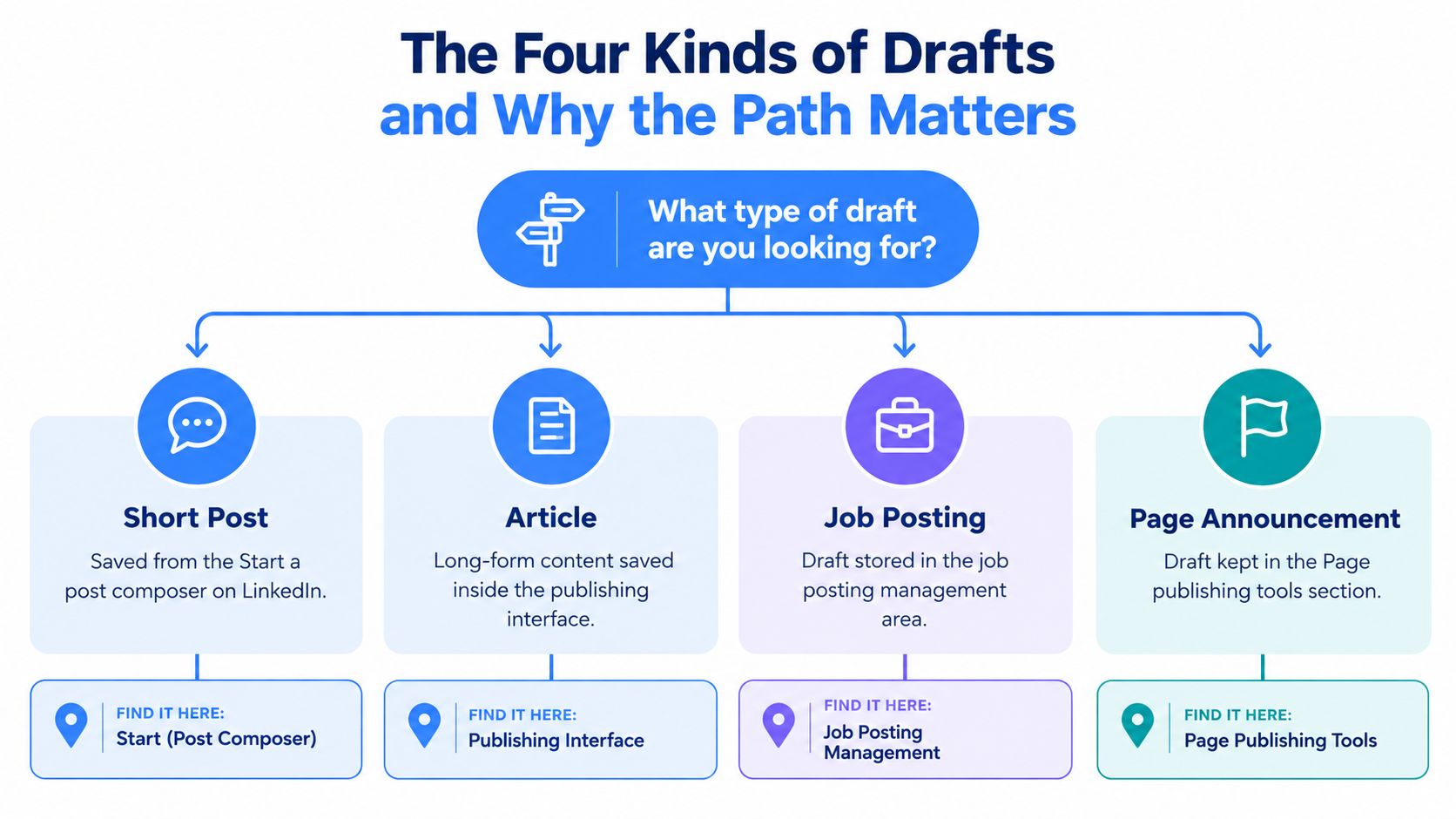
Calling everything a draft is convenient until you need to retrieve it. On LinkedIn, the content type determines which editor you should reopen. Your destination account matters too.
Use the content you remember writing to choose your starting point.
Match the draft to its home
- Short post. You wrote it in the LinkedIn feed composer. Start with Start a post, not a search through published posts.
- Article. You used the article editor for longer content. Return to the publishing interface.
- Job posting. You entered a role description and hiring details. Open the job management area.
- Page announcement. You were creating content for a company Page. Return through Page administration under the account that created it.
This decision tree keeps those destinations separate.
Before clicking, write down the intended destination and the account you used. A post about your company might still belong to your personal profile. The subject doesn't determine where the draft lives.
Search by where you created the draft, not where you hoped to publish it.
Separate location from writing stage
A rough draft, working copy, and final revision describe stages of writing. They don't tell you which application holds the text. The BarkerBooks guide to draft synonyms is useful when naming those stages so your filenames mean something.
Outside LinkedIn, add the original tool to your search notes. If you composed the text in a content studio, start there. If you edited a document, look for saved files or version history. If you wrote an email, check the mail account.
My recommendation is simple. Identify content type, account, and original editor before attempting recovery. Otherwise, you're checking cupboards for something you left in the fridge.
Finding Standard Post and Article Drafts on LinkedIn
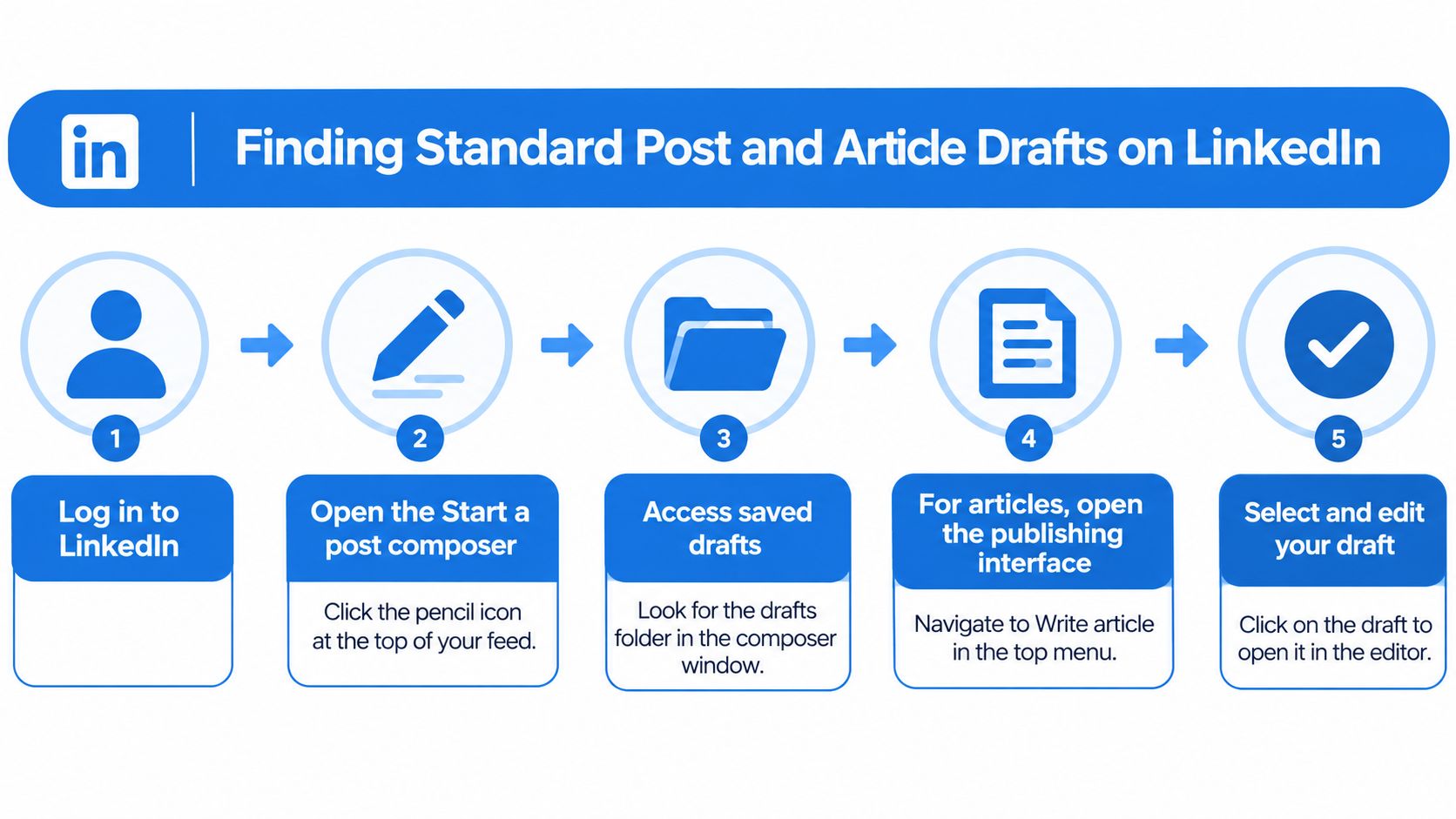
For a normal LinkedIn post, stop searching the feed. Reopen the composer.
LinkedIn's documented post draft workflow uses Cancel, followed by Save as draft, to preserve unfinished text. Later, reopening the Create a post window should populate that saved text. Articles use a separate publishing interface and save automatically once writing begins.
Retrieve a standard post
- Check the account. Confirm you're using the profile that created the draft.
- Open LinkedIn Home. Select Start a post.
- Inspect the composer. Look for your saved text before entering anything new.
- Review the contents. Check the ending, attachments, and intended audience before continuing.
The distinction between Cancel and Save as draft matters. Cancel brings you to the decision about leaving the editor. Confirming the save is the step you need, rather than just closing the composer and hoping.
Use the written retrieval path when checking a saved post.
The LinkedIn post draft guide gives you a focused reference to keep beside the editor. Keep post recovery separate from article recovery rather than treating every unfinished item as a composer draft.
Retrieve an article and inspect attachments
For an article, return to LinkedIn's article publishing interface and open the saved draft there. Don't expect the short post composer to display article content. You're reopening a different editor.
If the expected text is missing, check whether you changed accounts or were working in another account context. Then consider whether you confirmed the save prompt. Repeating the same click under the wrong profile won't help.
Before leaving the editor, keep a local text copy and note which attachments belong with it.
LinkedIn's attachment limits deserve attention. Photos and videos in a post draft can't be edited in place. Changing an attachment's visibility requires deleting it and uploading it again.
That makes a recovered draft worth inspecting, not immediately publishing. Check that the text is complete, then assess the media separately. Recovering your opening paragraph doesn't prove the attached video is ready.
Job Posts, Page Drafts, and Team Permissions
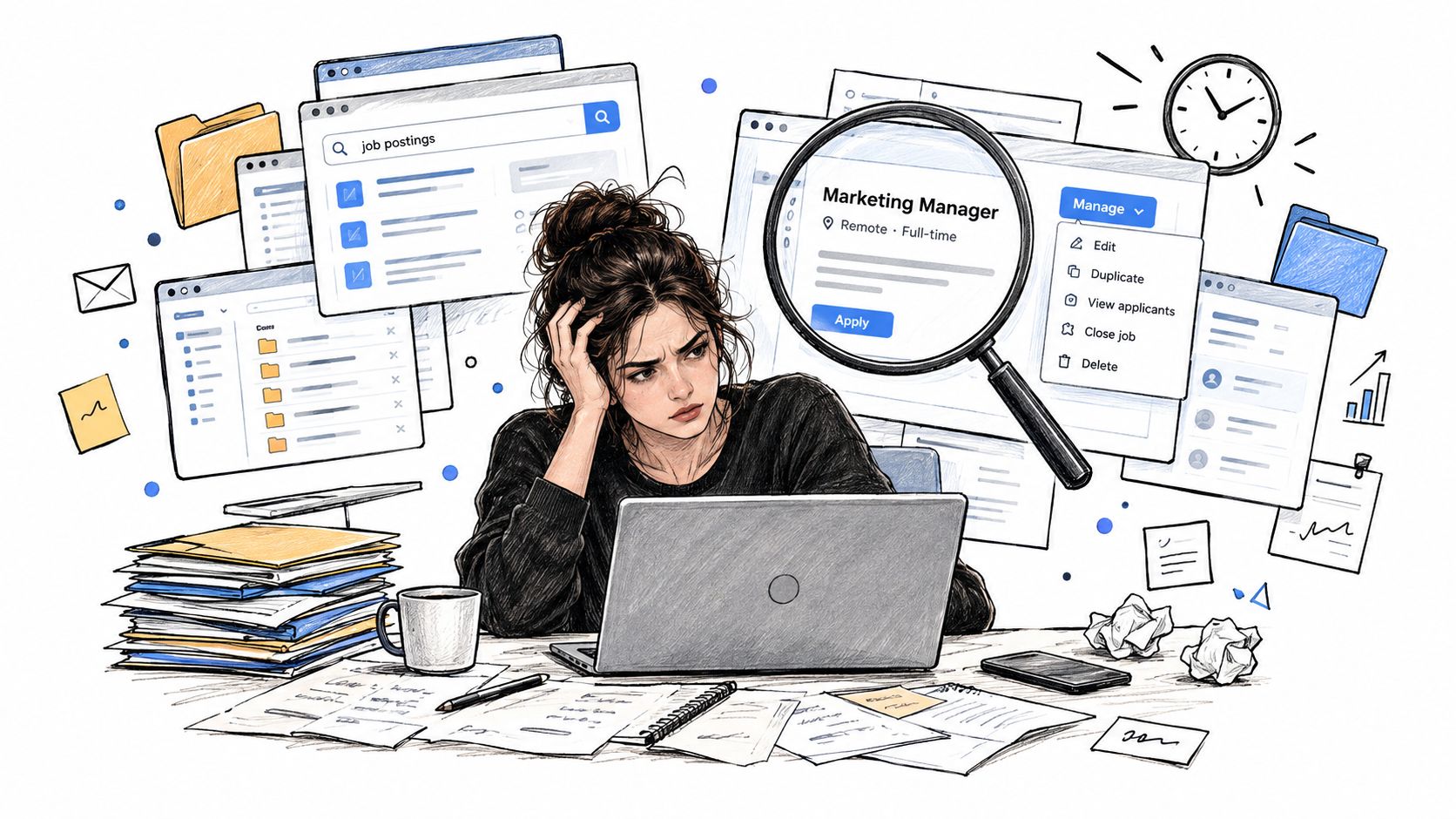
A saved vacancy won't appear in your ordinary post composer. LinkedIn puts job drafts under hiring controls.
Keep the hiring workflow separate from the content calendar.
Open the job management area
On desktop, select Jobs, open Manage job posts, choose the Draft filter, and select the relevant title. On mobile, open Jobs, use the menu near the search bar, choose Manage Jobs, then select Draft, following LinkedIn's job management guidance.
Opening the draft returns you to its overview or management screen. Treat that as access to saved work, not confirmation that the vacancy is still accurate.
Before finalizing, review the role details, location, employment type, compensation disclosures, and posting account. An old draft can contain a perfectly readable description of a role you no longer intend to advertise.
Check who created the Page draft
For a company Page announcement, enter the correct Page's administration area and use its publishing tools to locate your draft. Confirm that you're acting under the right Page before checking its saved content.
The permission limit is blunt. LinkedIn's Page draft guidance states that administrators can access their own drafts but can't view or publish drafts created by other administrators. Shared Page access doesn't give everyone access to everyone else's unfinished posts.
The guide to LinkedIn Page admin roles is useful when deciding who should own a publishing task. If a colleague created the draft, ask them to open it and share the text through your agreed review process.
Use this video as a companion while checking your own account context.
Record the draft's owner before assigning someone else to finish it.
Maintain a small draft inventory with the title, owner, target market, last edit date, and intended account. Give each entry a content type too. That leaves your teammate with a usable handoff instead of “I think I saved it somewhere.”
Inside ViralBrain Where Drafts Live and How to Sort Them
If you created the text in a content tool, look there before opening LinkedIn. An unfinished idea and a saved LinkedIn composer post aren't interchangeable.
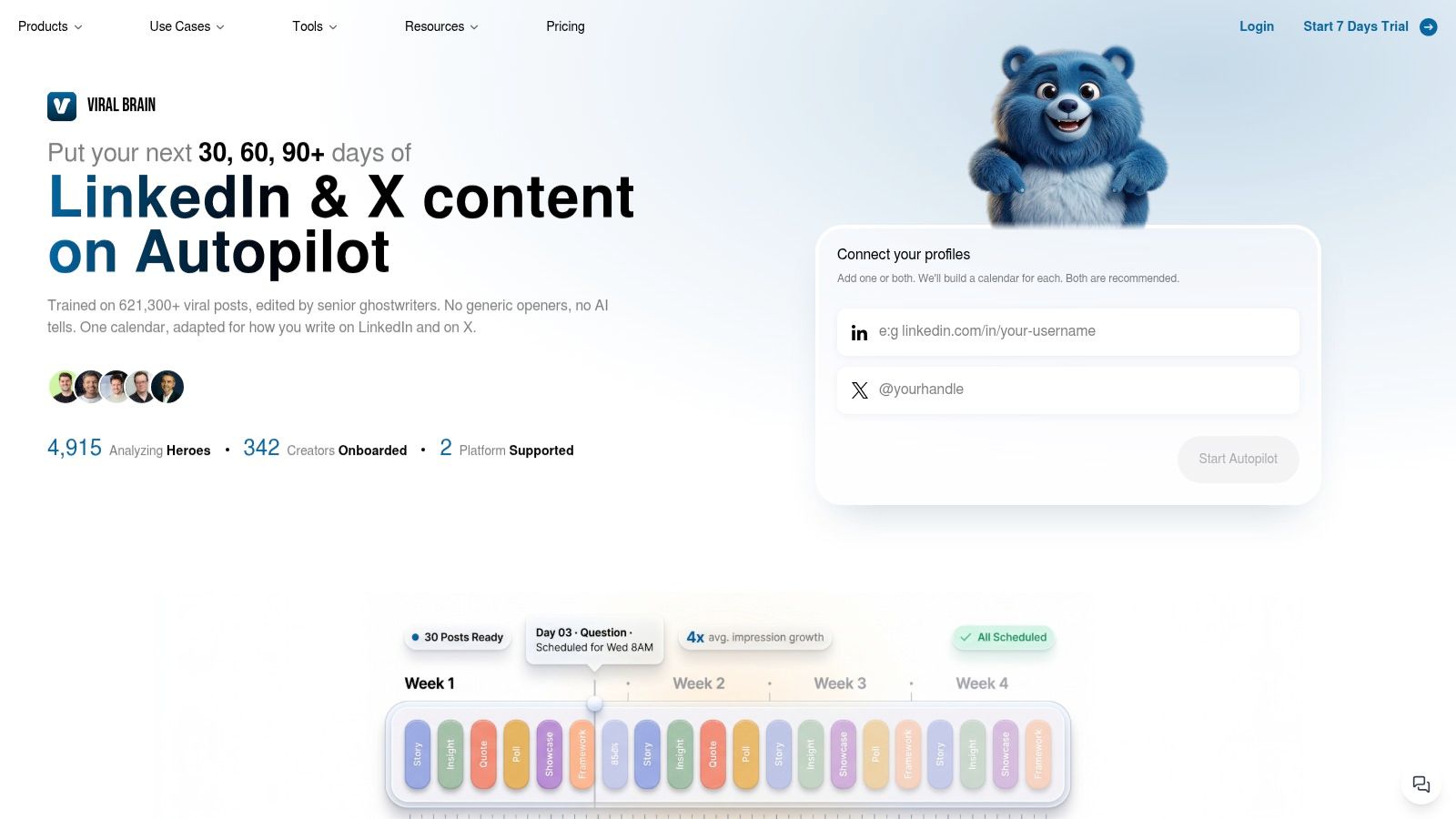
ViralBrain provides a content studio with agents for pattern translation, trending topic discovery, image generation, and repurposing. Its post creator offers a place to generate and edit text before publishing. Treat that working environment as a separate draft location from the destination platform.
The studio view provides context for that workflow.
Make variants recognizable
Consider a marketer testing different openings for a customer onboarding post. These are hypothetical working examples, not customer results. Useful names would distinguish a question hook, a direct claim, and a customer problem angle.
Don't rely on titles such as “new post” or “final.” Name the topic and the difference between versions. Customer onboarding, direct opening, founder voice tells you much more when you return later.
Keep tone variants separate when they serve different purposes. A founder's personal account may need different wording from a company Page announcement. Mixing both versions into one working draft makes review harder.
- Choose the topic first. Put the subject in the name so you can recognize it without reading the entire post.
- Identify the variant. Add the hook style or intended voice.
- Record the destination. Keep the intended profile or Page in your working notes.
Revisit the idea without guessing
Take a founder repurposing a Reddit thread. Save a note identifying the original idea, then distinguish the adapted post from any later rewrite. Keep source notes apart from the publishable text so you don't accidentally paste your research into LinkedIn.
Or consider a creator who stops midweek and returns on Friday. Leave a plain note such as check the closing paragraph or replace the image. A useful note tells your future self what remains unfinished.
When returning to the studio, confirm the account and identify the saved version by its topic and purpose. Don't guess at a folder or menu name. Use the controls visible in your account, then inspect the actual text.
Preview before publishing. Read the opening, paragraph breaks, image choice, and closing request as a complete post. If you're posting manually, transfer the approved version rather than an earlier experiment.
Your draft names should help you choose. If you must open every version to discover which one you wanted, improve the names before creating more.
Recovering Drafts in Word, Google Docs, and Gmail
Document recovery starts with the state of the work. Was the file never saved, was an existing document overwritten, or was an unfinished email left in an account? Each case needs a different action.
Microsoft Word, Google Docs, and Gmail provide distinct routes. Use the route that matches what happened rather than searching every folder at random.
Quick Recovery Paths for Common Draft Locations
| Tool | Path to Drafts or Recovery | Watch Out |
|---|---|---|
| Microsoft Word, never saved | File > Info > Manage Document > Recover Unsaved Documents | A recovery copy must exist |
| Microsoft Word, previously saved | File > Info, inspect the version labeled “when I closed without saving” | Compare before replacing current work |
| Google Docs | File > Version history > See version history | Look inside the existing document |
| Gmail | Drafts, or More > Drafts when the sidebar label is hidden | Confirm the mail account |
Recover Word files without overwriting useful work
For a document you never saved, open File > Info > Manage Document > Recover Unsaved Documents. Open an available recovery file and save it immediately using Save As, as described in Microsoft's unsaved document recovery guidance.
For an existing file, inspect the earlier version under File > Info. Microsoft's earlier version recovery instructions describe the version labeled “when I closed without saving”, which you can restore or compare with the current document.
After an unexpected closure, Word may display a Document Recovery pane when it restarts. Review the available timestamps, open the likely version, inspect its contents, and preserve it with Save As, following Microsoft's document recovery guidance.
Don't click Restore before checking what you currently have. Save the recovered content under a distinct name first. You want to preserve useful versions while deciding which text to keep.
Check document history and unfinished email
For overwritten Google Docs text, open File > Version history > See version history. Google's version history documentation explains how to inspect earlier document states. The file may be present even though your preferred wording has been replaced.
Preserve the current text before restoring an earlier state. Copy recovered wording into a clearly named document if you need to compare both versions. Don't discard newer edits just to retrieve an older paragraph.
Gmail automatically saves messages while you write. Open Drafts, expanding More in the sidebar if necessary, using Google's Gmail drafting guidance.
If Drafts looks empty, confirm the account and search for a remembered subject phrase or sentence. Once you find valuable text, copy it into a named working document before making major changes.
Common Myths That Make Drafts Look Lost
Bad assumptions turn a missing draft into unnecessary rewriting. Test the assumption before asking a colleague to investigate.
Replace the assumption with a check
AutoRecover guarantees recovery. It doesn't. The Word recovery routes above depend on an available recovery copy. Check the recovery files before treating remembered typing as proof that Word preserved it.
Changing accounts won't affect the search. A blank editor under another profile proves little. Check the active account against your draft notes.
Every Page administrator can finish the draft. The Page permission limit above rules that out. Identify the creator and ask that person to retrieve it.
An empty editor tells you what that editor can show you. It doesn't prove the text never existed.
Inspect what you recovered
Saved media will be editable like text. Apply the attachment checks described earlier. Open the draft and assess the media before planning a quick replacement.
A recovered draft is ready to publish. Recovery brings back saved content. You still need to verify the destination and review the wording.
For example, an unfinished hiring announcement may name an outdated location. Read the details rather than celebrating the reappearance of the file and immediately hitting publish.
A Short Checklist to Stop Losing Drafts
Use these habits while writing. They're less entertaining than a recovery hunt, which is the point.
- Name with intent. Include the topic, writing stage, and destination. Rename vague files before closing them.
- Keep a text copy. Put substantial posts in a clearly named local document before leaving the composer.
- Verify account context. Check the active profile or Page, then record the owner in your draft inventory.
- Preview the chosen version. Review the complete post in your content studio before transferring or publishing it.
- Save deliberately. Check Word's recovery settings in advance, but keep making regular saves.
Give unfinished work a specific next action. Review the image is useful. Finish later leaves you another editing task to diagnose.
Keep your naming convention boring and consistent. Your future self needs to find the right text, not admire your filing system.
ViralBrain offers draft creation, editing, and previews for LinkedIn content. Visit ViralBrain to work on a post, save your draft, and review the chosen version before publishing.
Grow your LinkedIn to the next level.
Use ViralBrain to analyze top creators and create posts that perform.
Try ViralBrain free