
How to See LinkedIn Post Analytics the Right Way
Learn how to see LinkedIn post analytics on desktop and mobile, what each metric means, and which numbers to track to grow on LinkedIn in 2026.
Grow your LinkedIn to the next level.
Use ViralBrain to analyze top creators and create posts that perform.
Try ViralBrain freeYou publish a LinkedIn post, wait a while, then check the only number you can see quickly: reactions. The post has a decent thumbs up count, but you still don't know whether the right people saw it, clicked through, followed you, or ignored it while scrolling.
LinkedIn hides the useful information one layer deeper. This guide shows how to see LinkedIn post analytics, what each metric means, and what decision you can make from it the same day. No worshipping impressions. No pretending every like is a business signal.
What You Can Actually See in LinkedIn Post Analytics
LinkedIn provides analytics for individual posts across text posts, images, videos, events, polls, and articles. You can open them by clicking the impressions count on a post or selecting View analytics, as explained in LinkedIn's post analytics help documentation.
The first useful split is reach versus response. Impressions count how many times LinkedIn showed the post. Unique viewers tell you how many different members saw it. Reactions, comments, reposts, and clicks show what people did after the post appeared. Those numbers answer different questions, so combining them into one vague “performance” score is lazy reporting.
A post with many impressions but few interactions may have a weak opening or poor audience fit. A post with modest reach but strong comments may have a topic worth developing. The dashboard won't make that judgment for you. It only gives you the clues.
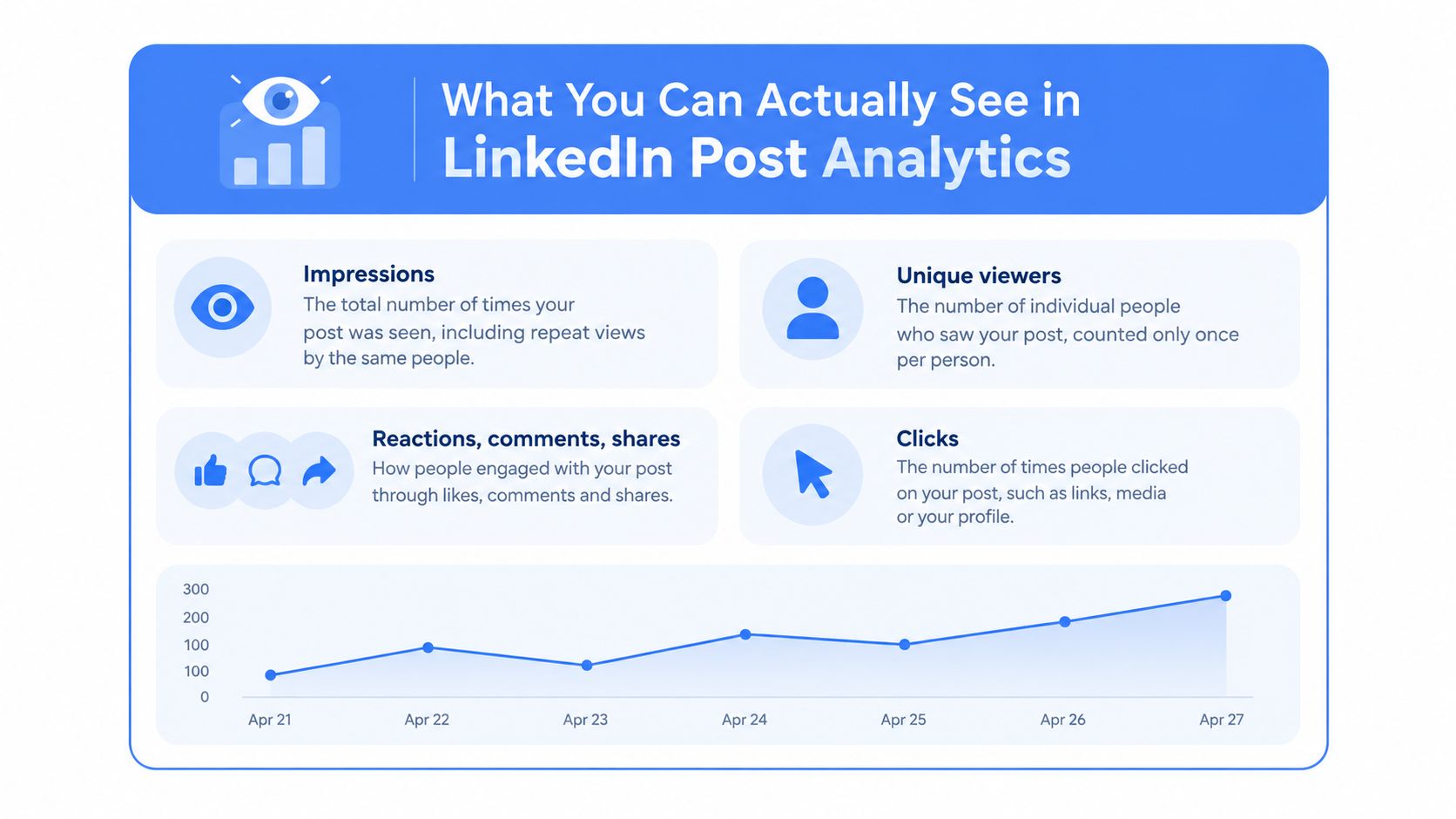
The main signals
LinkedIn's combined analytics let members compare post performance over time from Analytics & tools. You can filter the content portfolio by impressions or engagements, which is much more useful than judging one post in isolation.
If you confuse impressions with unique viewers, you may celebrate repeated exposure as fresh reach. This comparison of LinkedIn views and impressions helps separate those two readings.
Company pages can expose additional page level information, subject to access and the current LinkedIn interface. Personal profiles usually offer a simpler view. Either way, the practical question stays the same: what should you change next?
Opening Analytics on Your Personal Profile
For a personal profile, start from the post itself. LinkedIn says you can open a post's analytics by selecting the impressions count or View analytics. On desktop, open Me, choose Posts & Activity, select the relevant content tab, then click the impressions number in the lower left or the analytics link in the lower right, according to LinkedIn's official instructions.
You can reach combined post analytics from your profile's Analytics area. Click Show all analytics, then open the post performance view. LinkedIn identifies impressions as the number of times a post was shown on LinkedIn, and its creator analytics documentation says the Posts tab can be filtered by impressions or engagements over a chosen date range. The LinkedIn profile views guide is useful when you want to connect content performance with profile interest.
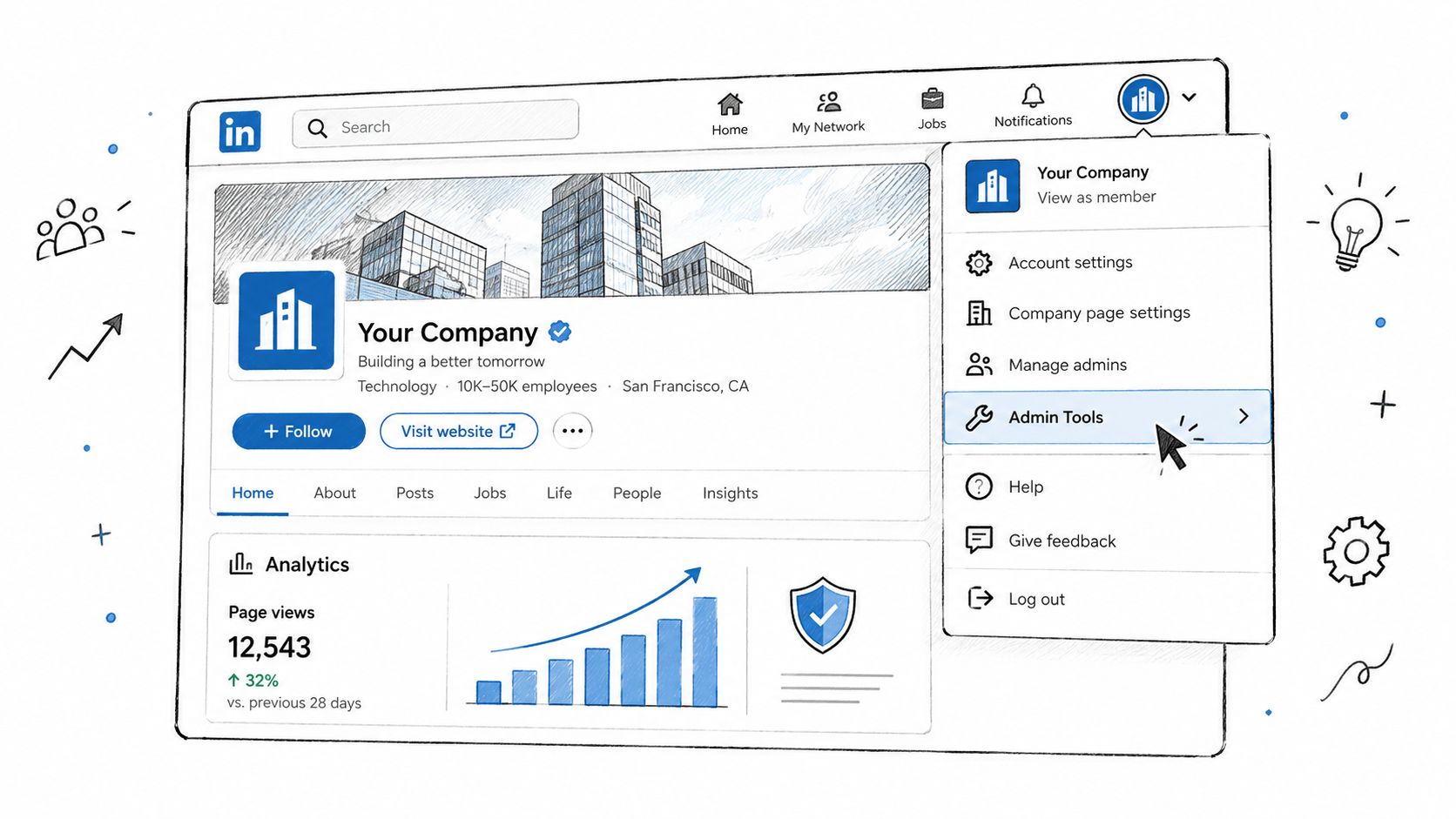
The desktop path
Open your profile and find the post you published. Click the impressions number or View analytics beneath the post. The panel shows the available performance data for that content, including impressions, engagements, reactions, comments, reposts, and clicks when LinkedIn has recorded them.
Don't hunt through Settings. That's where people go when they want to lose ten minutes and gain nothing.
The broader profile view
From your profile, open Analytics and select Show all analytics. LinkedIn says the profile analytics area lets you open combined post analytics, inspect the Post impressions figure, and view audience information through Total followers and related sections, as described in LinkedIn's personal analytics documentation.
On mobile, open your profile photo, go to Activity, find the post, then tap its impressions count or analytics option. The exact arrangement can vary by app version, but the post remains the starting point.
If analytics aren't visible, check whether LinkedIn has enough activity to display detailed results. The platform states that detailed analytics appear after a post has been viewed by at least 10 unique viewers, and that post analytics remain available for 60 days from creation, based on LinkedIn's product documentation.
Reading Analytics on a Company Page
Company page analytics follow a separate admin route. Switch into the page, locate the post in the page feed, then open its available analytics from the impressions count or analytics control. Page access matters. A visitor won't see the same data as an admin.
LinkedIn's Page content analytics defines clicks as actions from signed in members on the content, company name, or logo. Reposts, reactions, and comments aren't counted as clicks. LinkedIn also says document clicks from the same member count as one click, while impressions are an estimate and may not be precise. Those details appear in the LinkedIn Page content analytics documentation.

What admins should inspect
A page admin can use the page's Analytics area for broader content and audience reporting. LinkedIn's combined analytics cover content types such as short form posts, images, videos, events, polls, and articles. They can be filtered by impressions or engagements over a selected period.
Company pages are useful for separating audience quality from raw distribution. If clicks are recorded on the company name or logo rather than the post destination, the content may be creating brand curiosity without producing a strong content action. That can still be useful, but it shouldn't be reported as link performance.
The access problem
Personal profile analytics and page analytics don't answer exactly the same question. A founder may care about profile visits and follower growth. A marketing team may care about page content clicks and audience composition. Pick the reporting view that matches the decision, or you'll end up comparing apples with a spreadsheet.
The Metrics That Matter and What They Mean
A post can collect reactions and still fail to send readers anywhere. Read each metric as a decision prompt, not as a score. Impressions show distribution, while unique viewers show how broadly the post reached members. Use the first to judge visibility and the second to judge audience breadth.
Repeated exposure can create a large gap between impressions and unique viewers. That gap is a reason to inspect the response mix, not proof that people returned with intent. Check comments, clicks, and profile activity before treating repeat views as interest.
Clicks need context. LinkedIn may record clicks on the content, company name, or logo in page analytics. Separate those actions before calling the result a conversion signal. Low clicks alongside strong reactions usually means the post succeeded as discussion content, not traffic content.
| Metric | What it counts | What it tells you |
|---|---|---|
| Impressions | Times LinkedIn showed the post | Distribution and visibility |
| Unique viewers | Different members who saw it | Breadth of reach |
| Reactions | Lightweight public responses | Fast approval or recognition |
| Comments | Public replies | Topic depth and discussion |
| Reposts | Public redistribution | Shareable relevance |
| Clicks | Recorded content or page actions | Interest in taking a next step |
| Engagement rate | Interactions divided by impressions | Response quality relative to exposure |
The standard formula used in industry reporting is engagement rate = (likes + comments + shares + clicks) ÷ impressions × 100. One independent benchmark summary places average LinkedIn post engagement around 3.85% to 5.20% Sup's approach to influencer measurement, while another guide reports a general average closer to 5.20% to 6.50%. Methodology matters, so compare like with like.
Post age changes the meaning of the rate. A 4% engagement rate after two hours may signal strong early traction. The same rate after seven days may describe a post that has finished circulating. Record the post age beside the metric before comparing posts.
Use the metric to fix the right part
If impressions are low, inspect the opening and distribution context. If visibility is healthy but comments are scarce, the topic may not invite a useful response. If comments are strong but clicks are weak, the post may work as conversation while offering an unclear next action.
Video analytics can include watch time and completion information when video is attached. Early exits point to a weak opening. Viewers who stay but fail to finish point to pacing or structure.
Practical rule: Don't fix the call to action when the real problem is that nobody reached the useful part of the post.
Two Rules LinkedIn Does Not Put on the Front Page
A post can show an engagement rate before it has enough viewers to make that rate useful. LinkedIn's first buried threshold is at least 10 unique viewers. Detailed analytics become available only after a post reaches that level, so treat earlier reactions and rates as preliminary signals, not firm evidence.
A slow start does not justify rewriting your content strategy. Let the post clear the visibility threshold, then review impressions, unique viewers, and engagements together. Early activity can guide a reply or follow-up, but it is too limited to support a full content pivot.
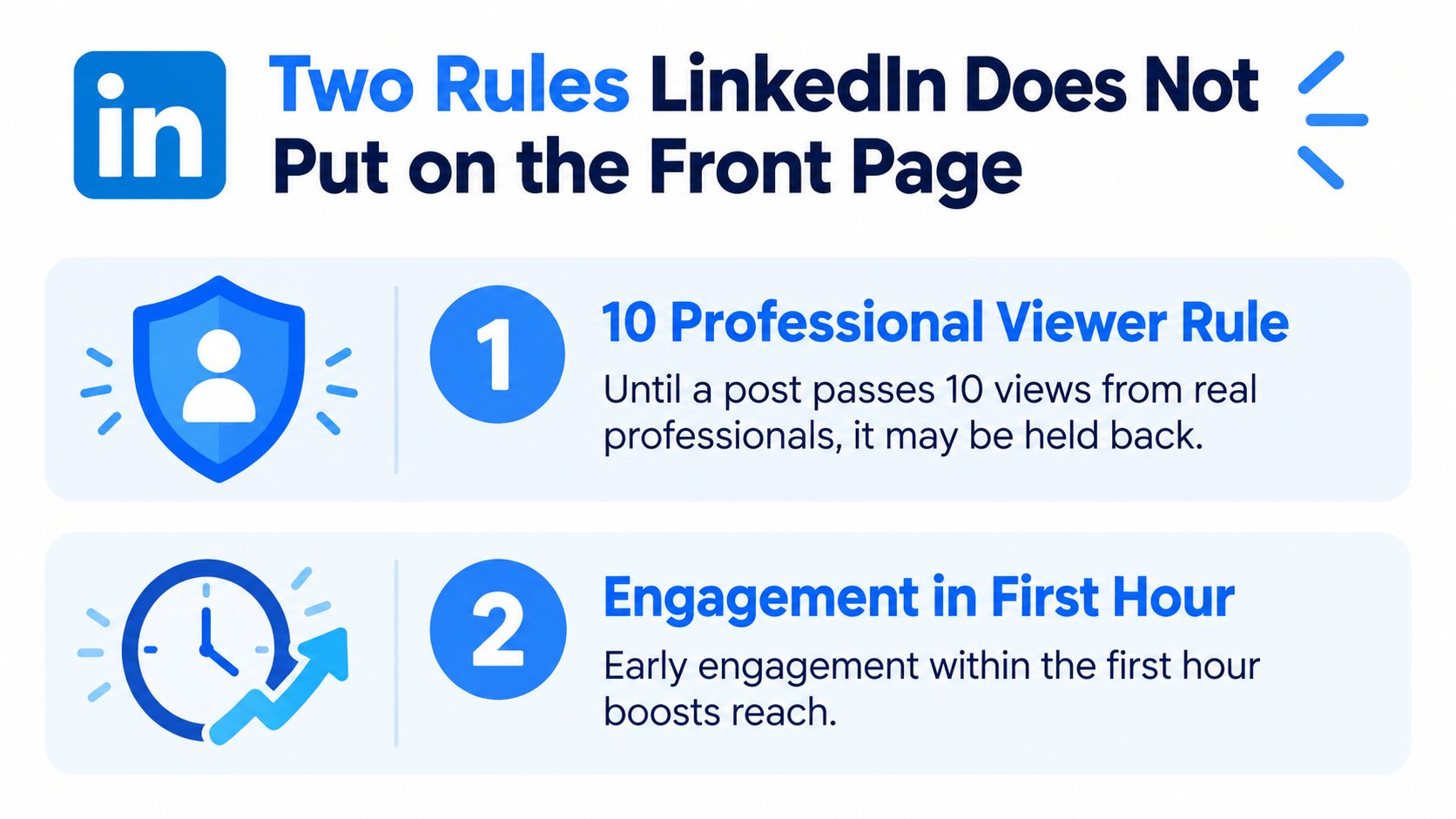
The second threshold is the reporting window. LinkedIn says post analytics remain available for 60 days from the post's creation. After that period, the dashboard is not a dependable permanent archive, especially for creators publishing frequently.
Make the thresholds operational
Use the viewer threshold to check sample quality. A post with barely enough viewers should not sit beside a mature post with a much wider audience in the same comparison. A precise-looking percentage can still rest on weak evidence.
Use the 60 day limit as a record keeping deadline. Export or record important results before the window closes. Combined analytics can help compare your content portfolio, but a historical system you control preserves context the dashboard may no longer show.
Benchmarking Your Numbers Without Lying to Yourself
Impressions are seductive because they look clean. They also make weak posts feel respectable. A post can collect exposure without generating meaningful interaction, so impressions shouldn't be your only headline KPI.
Use the standard engagement rate formula instead: (likes + comments + shares + clicks) ÷ impressions × 100. Independent 2026 benchmark reporting places average LinkedIn engagement roughly between 3.85% and 5.20%, while another benchmark guide places the general average between 5.20% and 6.50%. The gap is a warning, not a nuisance. Different datasets and formulas create different “normal” ranges, as discussed in LinkedIn benchmark reporting for 2026.
Compare like with like
Don't compare a post shortly after publishing with a post that has had much longer to circulate. Don't mix video, text, polls, and image content into one careless benchmark. Each format creates different opportunities for viewing and interaction.
Separate posts by purpose. Awareness content may deserve a reach review. Authority content should receive closer attention for comments and reposts. Lead generation content needs a click and profile action review. One universal average turns all three into the same bland spreadsheet row.
A simple bench protocol
Review a 90 day picture when you have enough history, and keep posts in goal based groups. Sort your recent posts by engagement rate, identify the strongest formats, then inspect the opening, topic, and action requested.
The useful benchmark is your own repeatable pattern, not somebody else's impressive screenshot.
If the top posts share a structure, repeat the structure with a different idea. If they only share a lucky spike, don't build a strategy around it.
Turning the Numbers Into Next Week's Posts
Start with your latest posts and rank them by engagement rate, not impressions. Use the native LinkedIn export or combined analytics view so the calculation stays consistent. Then label the strongest formats and the weakest ones.
The point isn't to crown one post a winner forever. It's to spot a repeatable signal. A strong comment rate across several posts may justify keeping the topic while changing the opening. Strong impressions with weak interaction may justify changing the format or tightening the audience.
A weekly operating rhythm
Monday is for pattern spotting. Review impressions, unique viewers, reactions, comments, reposts, and clicks. Mark the posts that earned meaningful action. Ignore the temptation to copy a single outlier.
Wednesday is for publishing. Choose one proven format and one clear audience problem. Keep the call to action aligned with the goal. A discussion post doesn't need to pretend it's a traffic campaign.
Friday is for review. Check whether the post gathered reach, response, or profile interest. If the opening attracted viewers but the middle lost them, edit the structure. If the post generated comments but few clicks, decide whether that was a failure or the wrong objective.
Know when to change course
Change the format when the same topic performs well in conversation but poorly in the current presentation. Change the topic when the format repeatedly earns exposure without relevant response. Do nothing when the post hasn't cleared LinkedIn's minimum viewer threshold or when the reporting window is still too early for a fair comparison.
A tool such as ViralBrain can place LinkedIn performance data beside content patterns, helping teams compare posts across weeks instead of relying on scattered feed memory. That kind of view is useful when native analytics provide the numbers but not the editorial diagnosis.
Before closing this tab, open your last posts, calculate engagement rate consistently, and choose one format to repeat next week.
ViralBrain helps you study high performing LinkedIn patterns, draft posts in your own voice, improve hooks, and review performance with analytics tools. Use it alongside LinkedIn's native data, then visit ViralBrain to turn the next review into a repeatable publishing routine.
Grow your LinkedIn to the next level.
Use ViralBrain to analyze top creators and create posts that perform.
Try ViralBrain free