
LinkedIn Private Mode Explained and How to Use It
Learn what LinkedIn Private Mode does, how it hides your views, its tradeoffs, and how to turn LinkedIn Private Mode on or off on web and mobile.
Grow your LinkedIn to the next level.
Use ViralBrain to analyze top creators and create posts that perform.
Try ViralBrain freeYou click a prospect's profile before sending a message. Or maybe it's a hiring manager, a competitor, or someone at a company you're researching. Then the small panic arrives. Will they see your name? Will your visit look like interest? Will LinkedIn turn five minutes of research into an accidental introduction?
LinkedIn private mode gives you a way to browse without showing your identity to the profile owner. But it comes with a cost. You give up some visibility into your own profile viewers, depending on your account type. That tradeoff matters if you use LinkedIn for networking, sales, hiring, or personal branding.
This guide explains what the setting changes, what the other person sees, how free and Premium accounts differ, and when anonymity helps or hurts. If you're researching people for a fundraise, you may also want this guide to finding investors with Gritt.io. For a broader view of profile performance, see LinkedIn profile analytics.
Introduction Why Private Viewing Matters on LinkedIn
LinkedIn treats a profile visit as a possible networking signal. A public visit can put your name, headline, and photo in front of the person you viewed. That can start a conversation. It can also make your quiet research feel less quiet.
Suppose you're checking a sales prospect before writing an outreach message. Public viewing may help the prospect recognize you later. If they visit your profile in return, you may gain useful context about interest. Private viewing removes that signal. You can inspect the profile without showing who you are, but the person you viewed loses the chance to connect the visit with you.
The same tension appears during a discreet job search. You may want to study hiring managers, team members, or company leaders without making your interest obvious. Private mode helps with that narrow task. It doesn't make your entire LinkedIn presence invisible, though. It only changes how you appear when viewing other profiles.
Practical rule: Use private mode for a clear reason, not as your permanent default.
LinkedIn's setting is simple. The consequences are less simple. On a Basic account, private browsing prevents you from seeing who viewed your profile. On a Premium account, LinkedIn preserves access to the people who viewed your profile during the last 90 days, even while you browse privately, according to LinkedIn's profile viewing guidance. Premium still can't reveal people who used private mode themselves.
That makes private mode a visibility tradeoff. You gain anonymity on the profiles you visit. You may lose useful viewer information, unless you have Premium. The right choice depends on whether your current priority is quiet research or visible networking.
What LinkedIn Private Mode Actually Does
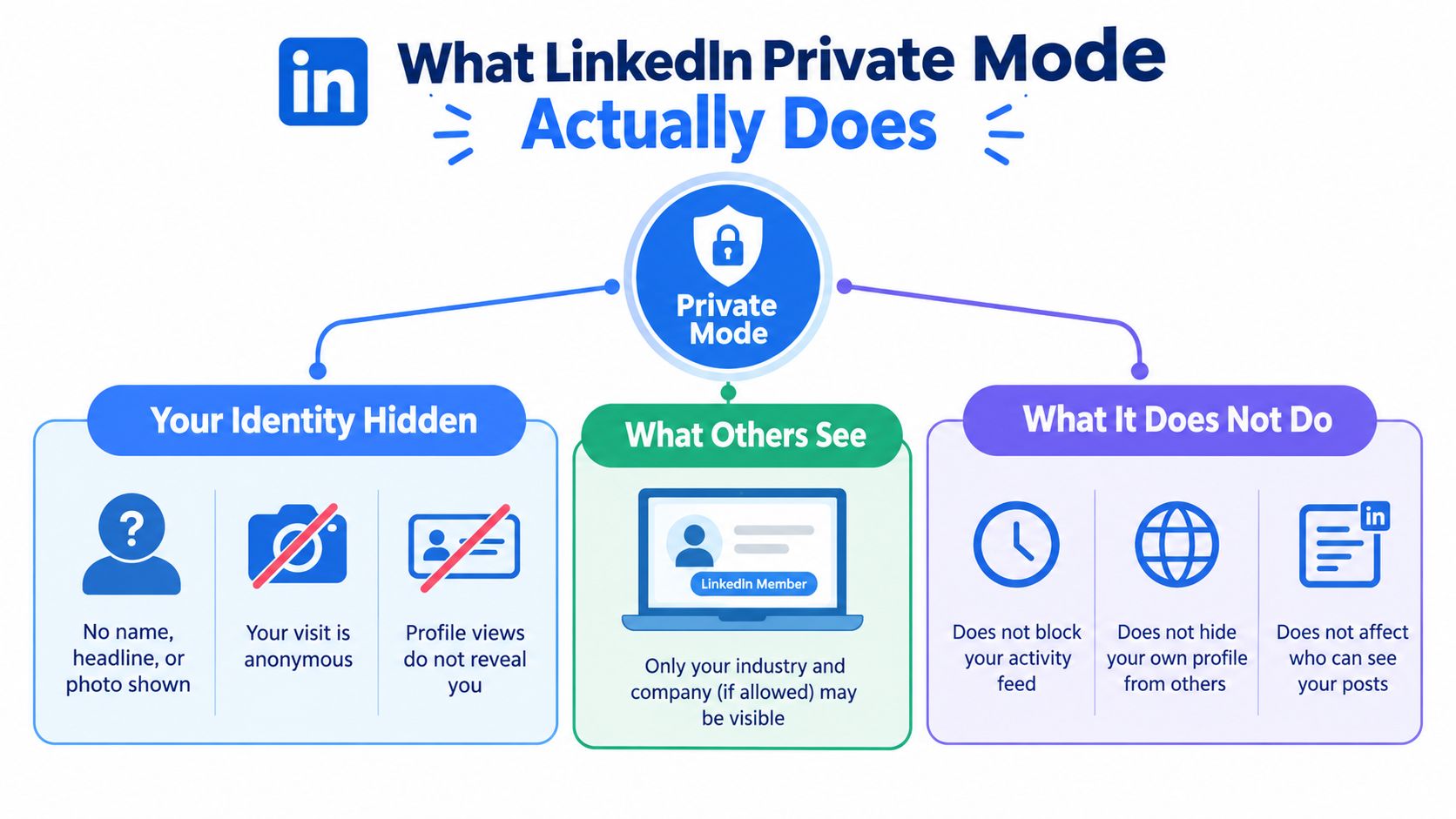
Private mode hides your identity from the person whose profile you visit. LinkedIn shows the profile owner a generic entry that reads “LinkedIn Member, This person is viewing profiles in private mode.” LinkedIn says no other information about you is shared with that member, as explained in its private and semi private browsing settings.
That means your name, headline, photo, and other identity details don't appear as part of the profile view. It's like walking into a professional event wearing a plain badge that says “attendee.” You can look around. People know someone visited. They don't know it was you.
The boundary is narrower than people expect
Private mode affects your profile visits. It doesn't hide your own profile from search. It doesn't change how other people see your profile in search or elsewhere. Your posts, comments, activity, and other public signals follow their own visibility settings.
The setting also works forward, not backward. LinkedIn's learning guidance says it controls future profile views. If you visited someone while visible, changing to private mode afterward won't hide that earlier visit, as noted in LinkedIn Premium's private browsing tip.
That timing detail is easy to miss. Many people change the setting after browsing, then assume the record has vanished. It hasn't. LinkedIn privacy settings have a boring habit of doing exactly what they say, rather than what we hoped they said.
What the other person sees
The profile owner sees a generic private mode label. LinkedIn states that no additional information about you is shared with that member. The anonymity applies to the visit record, not to every interaction you have with that person.
If you send a connection request, comment on their post, or message them, those actions can identify you through the normal LinkedIn experience. Private mode doesn't turn your account into a cloaking device. It only changes the identity attached to a profile visit.
Private Mode Versus Public and Semi Private Viewing
You are researching a hiring manager, prospect, or potential partner. Public viewing can put your name in front of that person before you send a message. Private viewing protects your identity, but removes that small networking signal. LinkedIn's three viewing choices are visibility settings, not just privacy levels.
Public mode shows your identity, including details such as your name, headline, and photo. A profile owner may recognize your background and visit your profile in return. That makes public viewing useful for recruiters, sales professionals, and anyone who wants browsing to support relationship building.
Semi private mode shares limited context, such as your industry or company, where LinkedIn allows it. The profile owner gets a clue about who is looking without seeing your full identity. It works like leaving a business card with the name covered but the industry printed on it.
Private mode replaces your identity with a generic entry. The owner sees no personal context from the visit. You gain the strongest anonymity, while giving up a possible reason for that person to discover or contact you.
| Viewing Mode | What Profile Owner Sees | What You Keep |
|---|---|---|
| Public | Your name, headline, photo, and other profile identity details | The clearest opportunity for reciprocal interest |
| Semi private | Limited details such as industry or company, where allowed | Some context without full identity exposure |
| Private | “LinkedIn Member, This person is viewing profiles in private mode” | Anonymous browsing, with the tradeoff described below |
Your account type changes the exchange. With a Basic account, private browsing also prevents you from seeing who viewed your own profile. With a Premium account, LinkedIn says you can still access viewer history from the last 90 days, even while browsing privately, according to LinkedIn's explanation of private mode viewers.
Premium does not make private viewers identifiable. If another member browses anonymously, their name remains hidden from you. The privacy boundary works both ways.
For a practical explanation of who can see who viewed your LinkedIn profile, review how profile-view visibility works. Choose public mode when recognition could help growth, semi private mode when you want context with less exposure, and private mode when anonymity matters more than discovery.
The honest comparison: Public mode helps people recognize you. Private mode helps you stay unknown. Semi private mode gives you less of both.
How to Turn LinkedIn Private Mode On or Off
You are about to inspect a competitor's profile when you notice your visit could reveal your interest. LinkedIn lets you choose visibility before you browse. The setting sits inside Profile viewing options, although labels may shift as the interface changes.
On desktop
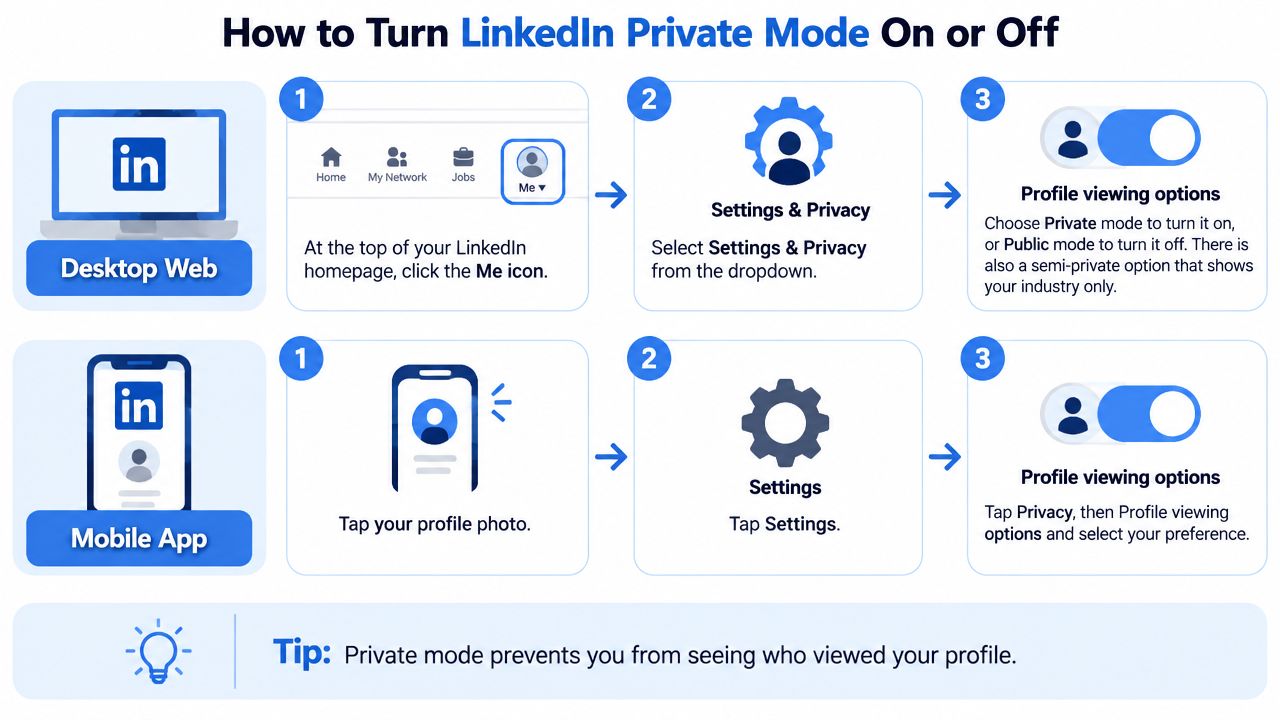
- Click the Me icon at the top of your LinkedIn homepage.
- Select Settings & Privacy.
- Open Visibility.
- Choose Profile viewing options.
- Select Private mode to hide your identity.
- Choose Public mode to show your identity again.
- Select the semi private option if you want limited details to appear instead.
The choice applies to future profile views. It does not erase visits made earlier. If you viewed a sensitive profile publicly, switching modes afterward cannot change that record.
On the mobile app
- Tap your profile photo.
- Tap Settings.
- Tap Privacy.
- Open Profile viewing options.
- Choose Private mode, Public mode, or the semi private option.
Check the selected option before opening a profile. LinkedIn normally shows the current choice on this screen. Memory is good at preserving intentions and much less reliable at preserving settings.
Timing matters: Turn private mode on before opening the profile you want to research.
After your research, use the same path to return to public mode. Private browsing can work as a temporary setting, rather than a permanent identity choice.
Your account type changes what you can see afterward. A Basic account loses access to its own viewer list while browsing privately. Premium keeps viewer history for the last 90 days, but private visitors still remain anonymous, as described in LinkedIn's viewer privacy documentation.
The setting therefore changes more than your visibility. It also changes the information you receive about visits to your own profile. Choose the mode before each research session, based on whether discovery or anonymity matters more.
When to Use Private Mode Pros Cons and Smart Alternatives
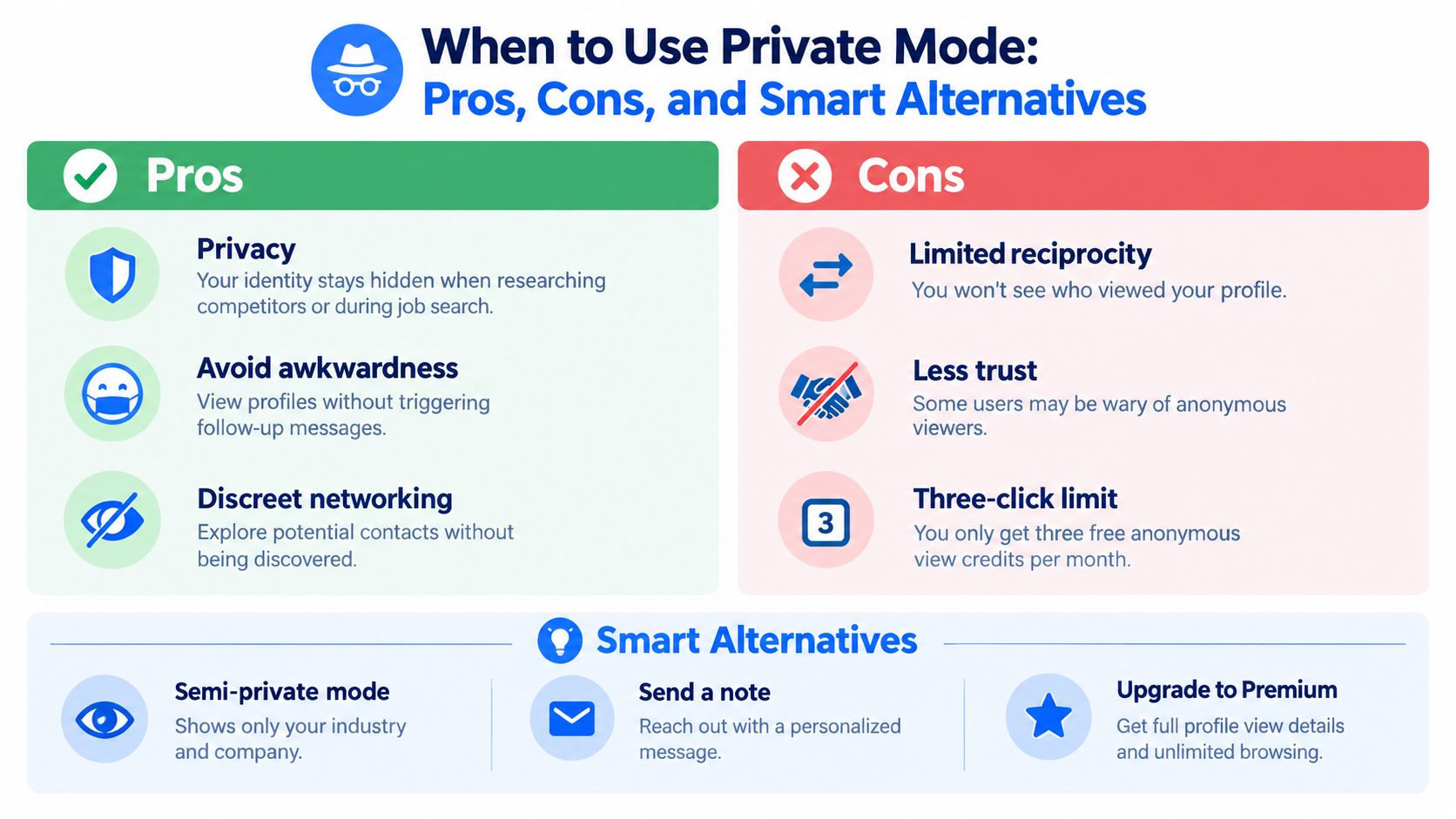
Private mode makes sense when being seen would create friction. Competitor research is one example. You may want to study a company's leadership team or sales structure without advertising your interest. A discreet job search is another. Looking at hiring managers can reveal useful context, but you may not want every visit to announce your plans.
Sales research needs more judgment. Private viewing can help you prepare before contacting a prospect. Public viewing may work better when you want the prospect to notice you first. A visible visit can create a reason for them to check your profile. An anonymous visit can't do that.
The tradeoff in plain terms
The benefit is control. You decide whether a profile visit carries your identity. That can reduce awkwardness when you're researching sensitive topics or checking someone's background before making contact.
The cost is lost reciprocity. On a Basic account, private browsing blocks access to your own profile viewer information. Even Premium users can't identify people who viewed privately. You're accepting a boundary that protects others as well as you.
A semi private setting can suit broad research. It reveals limited context without attaching your name. Public mode suits relationship building, personal branding, and outreach where recognition helps.
For broader privacy habits, privacy practices explained offers useful context beyond LinkedIn's profile viewing setting. If your job search includes documents, you may also want guidance on adding a resume to your LinkedIn profile.
Use a simple rule. Stay private when discovery could expose a sensitive plan. Stay public when recognition could help start a relationship. Switch back when the research ends.
Final Takeaways for Smarter More Private Browsing
You are reviewing a competitor's profile before sending a message. Private mode keeps your visit quiet, but it also removes a possible introduction. That is the tradeoff: privacy protects your research, while visibility can support growth.
Use private mode when being identified could expose a sensitive plan, reveal a job search, or make early research uncomfortable. Keep public viewing for situations where recognition may help someone connect your visit with your profile. Semi private viewing sits between those choices, offering limited context without showing your full identity.
Private mode protects the other person's anonymity too. Even Premium cannot identify someone who viewed privately, as LinkedIn notes in its guidance on private profile viewers. That boundary is useful, but it means every hidden visit may be a missed networking signal.
Before your next research sprint:
- Set profile viewing to Private.
- Complete every sensitive profile visit.
- Review your notes before changing the setting.
- Switch back to Public when outreach or visibility matters.
- Check Who Viewed Your Profile after 24 hours for reciprocal visits.
This checklist treats anonymity as a temporary tool, not a permanent identity. Private mode is a good research coat. It is a poor networking name tag.
If you use LinkedIn to grow an audience, hiding every visit can work against that goal. A deliberate switch gives you control over when to observe and when to be seen.
Use ViralBrain to study high-performing LinkedIn content, draft posts in your own voice, and review analytics that can improve your public presence. Set your viewing option before the next profile click, then change it when the task is complete.
Grow your LinkedIn to the next level.
Use ViralBrain to analyze top creators and create posts that perform.
Try ViralBrain free