
How Do I Add a Company to LinkedIn: The Complete Guide
Learn how do i add a company to linkedin with this step-by-step guide. Covers prerequisites, creation steps, verification tips, and common troubleshooting
Grow your LinkedIn to the next level.
Use ViralBrain to analyze top creators and create posts that perform.
Try ViralBrain freeYou created a LinkedIn profile for yourself, added your job title, then searched for the company page. Three pages appeared. One belongs to a former employee. Another has the wrong website. The third has no logo and nobody knows who controls it. That mess is common, and it starts when people skip one simple check.
The right answer to “How do I add a company to LinkedIn?” is to create or claim an organization owned Company Page, not a second personal profile. LinkedIn has treated company presence as a separate structure since it introduced upgraded Company Pages in November 2010, after launching in 2003 from Reid Hoffman's living room in 2002. LinkedIn's company history shows the direction clearly, from basic corporate profiles to Pages and later Product Pages.
Why Adding a Company to LinkedIn Usually Goes Wrong
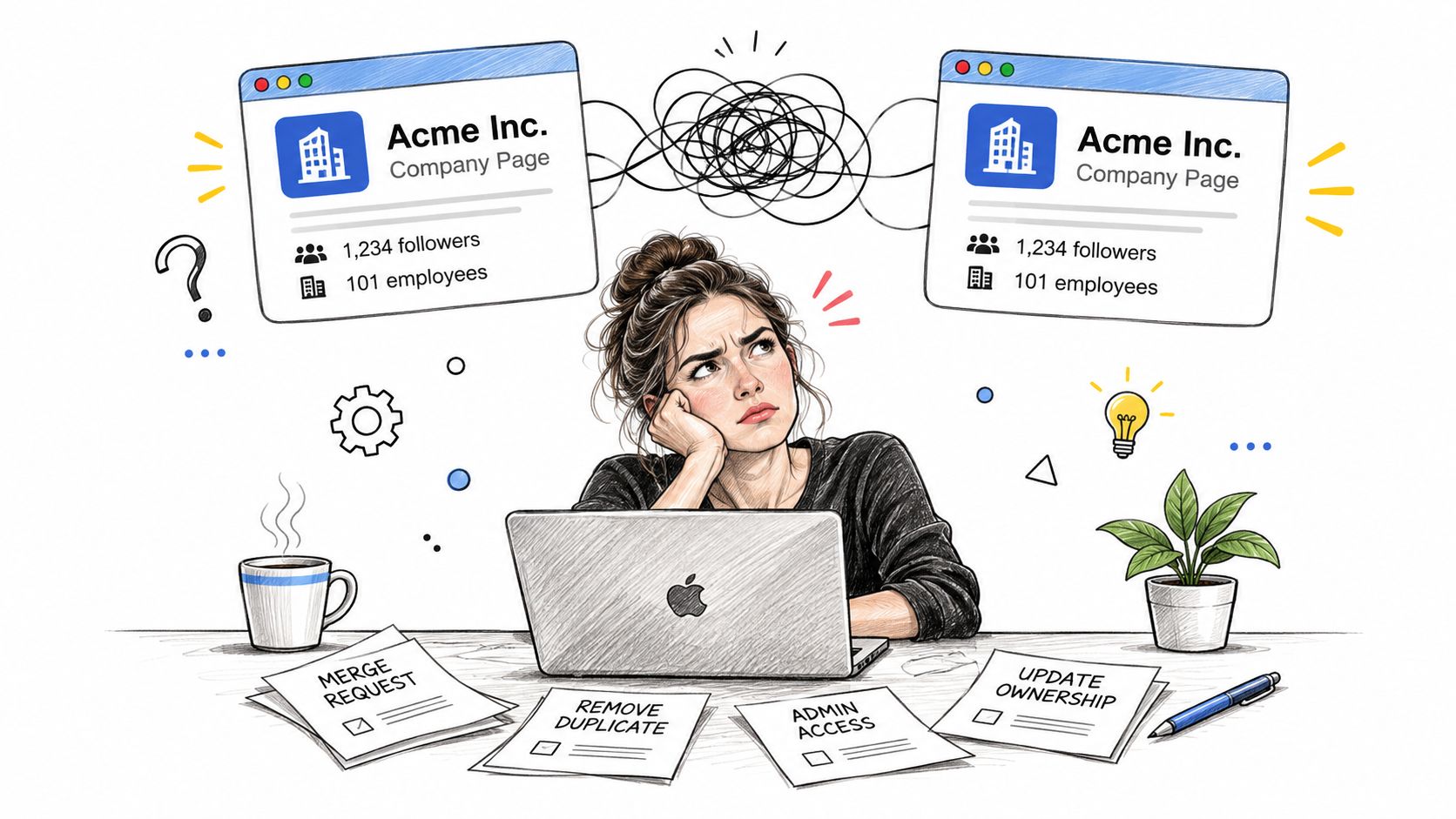
A founder named Sam creates a page called ViralBrain from a brand new LinkedIn account. The name appears unavailable. Sam assumes LinkedIn is broken and tries a slight variation. That creates a second page. A contractor later creates a third one using a different website address. Employees link their profiles to different entries, prospects find conflicting information, and nobody can see the full follower or employee picture.
The problem isn't usually the form. It's poor ownership checks.
Know which LinkedIn identity you need
A personal profile represents a person. It uses a real first and last name. It carries personal posts, work history, connections, and networking activity.
A Company Page represents the organization. It holds the company name, website, industry, location, logo, products, description, and employee associations. A founder's profile can mention the company, but it doesn't replace the official Page.
A Showcase Page sits under a Company Page. It can represent a distinct product, brand, or business unit with its own content focus. It shouldn't become a second home for the same company because the first Page feels unfinished.
Practical rule: Search LinkedIn for the exact company name before you create anything. If a matching Page exists, claim access. Don't build a duplicate because the existing profile has poor copy.
LinkedIn requires a personal account before you can create a Page. The creator must use a real name, confirm the account email, have more than one LinkedIn connection, and show the company as a current workplace in the Experience section. LinkedIn may request company email verification or Microsoft Entra Verified ID. LinkedIn's Page creation requirements cover these checks.
Run the preflight check
Search the company name. Open every matching organization or Listing Page. Compare the logo, website, location, and employee names. If one Page clearly belongs to your company, request admin access instead of creating another.
Then decide the structure. Use one Company Page for the main organization. Use a Showcase Page only when a product, sub brand, or regional audience genuinely needs its own feed. Reserve a clean public URL before you share the Page in sales documents or email signatures.
This ten minute check prevents a long cleanup project. Duplicate Pages split followers, employee links, search visibility, and analytics. They also make the business look careless, which is a poor first impression for a company trying to sell trust.
How to Add a Company to LinkedIn on Desktop
Desktop is the cleanest route for first time setup. You can see the full Page type selection and review the form without squeezing business decisions into a small screen.
Follow the desktop path
- Sign in to an established personal LinkedIn account.
- Open the For Business menu.
- Select Create a Company Page.
- Choose Company.
- Enter the public company name.
- Set a clean public LinkedIn URL.
- Add the website, industry, organization size, company type, logo, and tagline.
- Confirm that you have the right to act for the company.
- Select Create page.
LinkedIn's official Company Page creation flow confirms the required path and fields. Treat every field as a trust signal. Use the legal or customer facing company name consistently. Pick the main industry, not every market you may serve. Set organization size based on the current business, not a hopeful hiring plan.
The public URL deserves care. Pick a durable identifier such as viralbrain if it is available. Avoid temporary campaign names, random numbers, or a URL that only makes sense to your current team. You may distribute it across profiles, proposals, job posts, and customer conversations.
Complete the form without making things up
The tagline is optional. Leave it blank rather than adding vague language about innovation or transformation. A short, specific phrase is useful. Empty corporate filler isn't.
Use a company domain email for verification where possible. Generic addresses can make ownership harder to confirm. The verification checkbox exists because you're publishing a public organization record, not adding a casual detail to your profile. You must have the right to represent the business.
This visual walkthrough can help if LinkedIn's menus have moved since you last used them.
If you want another practical explanation of the click path, top talent with Underdog.io covers the same setup from a hiring and employer branding angle.
Don't stop after the Page publishes. Add the About copy, website, location, logo, and industry details. Then ask employees to select the exact Page when they add the company to their Experience section. A Page with no connected employees looks abandoned, even when the business is active.
How to Add a Company to LinkedIn on Mobile
Mobile works, but LinkedIn hides the controls in a different place. Open the LinkedIn app, tap the More menu, then find the option to create a Page. Select the suitable Page type and complete the company information shown in the app.
The mobile flow exposes fewer Page type choices than desktop. That matters if you're weighing a Company Page against a Showcase Page. For a first setup, desktop gives you a fuller view and makes errors easier to catch.
Mobile versus desktop
| Decision | Desktop | Mobile |
|---|---|---|
| Access path | For Business menu | More menu in the app |
| Page choices | Broader selection | Fewer choices shown |
| Best use | First time setup and review | Quick creation or minor access tasks |
| Main risk | Duplicate ownership if you skip search | Missing a Page type or field |
The same basic information applies. Use the correct company name, public URL, website, industry, organization size, company type, logo, and optional tagline. Confirm your authorization before publishing. LinkedIn's mobile Page guidance explains the different menu path and available Page types.
Don't create a Page from a rushed phone session while standing in an airport queue. Search for existing Pages first. If the Page type decision is unclear, move to desktop. The small screen is convenient, not wise.
When mobile makes sense
Mobile is fine when the company structure is already settled and you only need to complete a straightforward form. It's also useful for checking whether an existing Page appears under your admin access.
Desktop remains the better choice when the business has several brands, regional operations, or a product that may need a Showcase Page. Those choices affect governance and content ownership. They deserve more attention than a thumb can provide.
Company Page vs Showcase Page Decision Guide
You create a LinkedIn Page for one product line, then another for a region, then another because the sales team wants its own feed. Six months later, the followers are split, employee attribution is messy, and half the Pages are inactive. That mess starts with a bad structure decision, not a bad logo or weak copy.
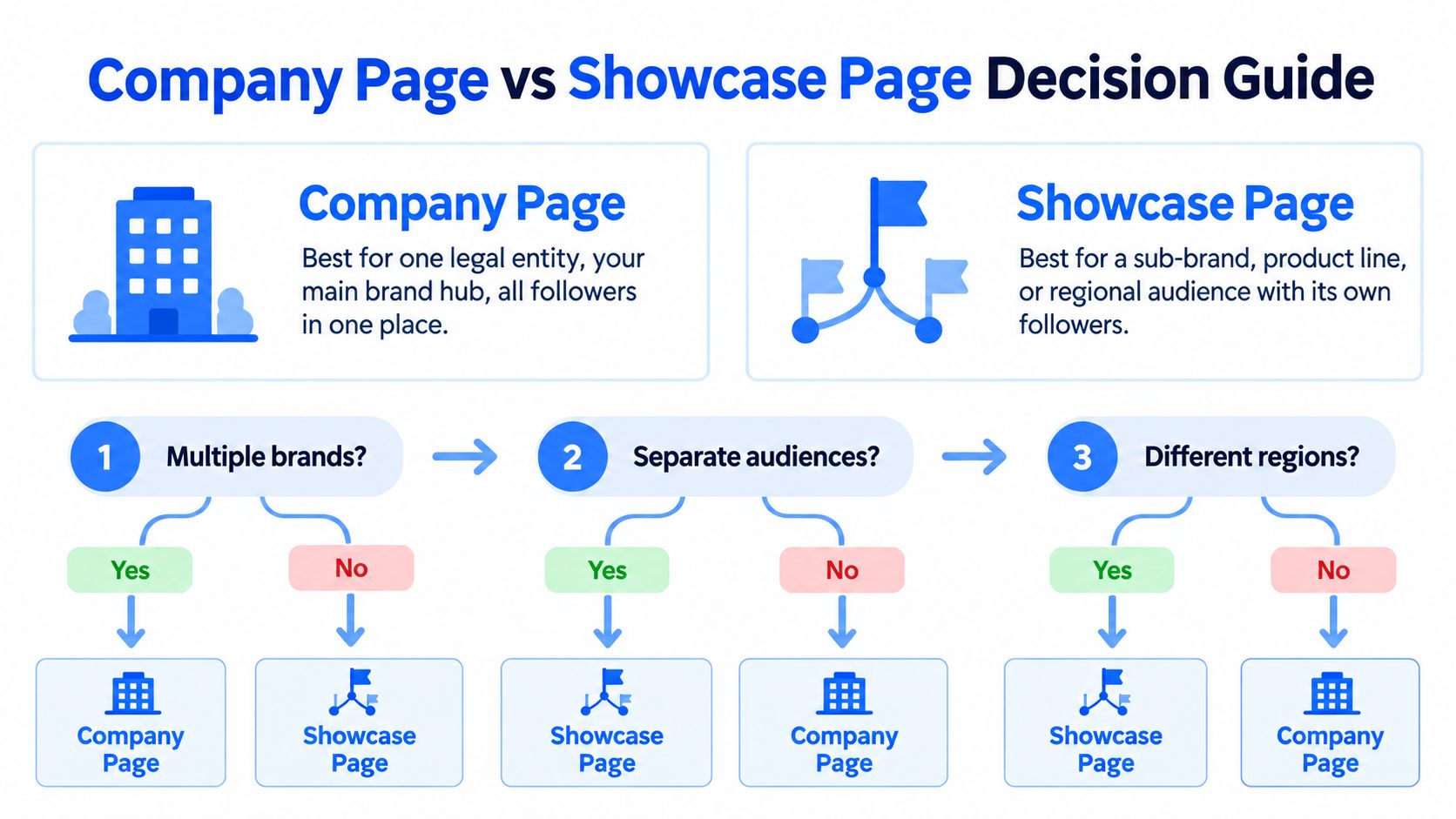
Start with one Company Page for the main business, legal entity, or primary brand. That is the page employees should attach to, prospects should find first, and admins should manage as the core presence. Create extra structures only when they solve a real audience problem.
A Showcase Page sits under that main Page. Use it for a product, sub-brand, business unit, or regional audience that genuinely needs separate messaging. Do not create one because LinkedIn makes the option available. A dead Showcase Page signals neglect faster than a quiet company blog ever will.
Use this decision table
| Situation | Better choice | Reason |
|---|---|---|
| One legal entity and one main brand | Company Page | Keeps followers, employees, and company information together |
| Distinct product with its own audience | Showcase Page | Gives the product a focused content stream under the main Page |
| Regional brand with separate messaging | Showcase Page | Separates regional communication without creating another main company identity |
| Same brand, same audience, slightly different offer | Company Page | A second structure adds work without adding clarity |
| Unclear ownership or limited content capacity | Company Page | Fewer admins, feeds, and reporting tasks |
The hard truth is simple. A Showcase Page is not a shortcut to better reach. It is another publishing destination that needs content, ownership, and reporting. If you do not have a clear audience and a team willing to maintain it, keep everything on the main Company Page.
Separate Company Pages are even easier to misuse. If the business is still one company with one employer identity, splitting into multiple top-level Pages usually creates duplicate follower growth, confused branding, and employee profiles connected to the wrong place. Use separate Company Pages only when the entities are distinct enough to justify independent identity and governance.
Before you publish anything, pressure test three setup decisions. First, check for a company name collision. If a Page already exists for your organization, request access instead of creating a duplicate. Second, check the public URL collision. Your Page name can be adjusted, but a claimed URL will still block you. Third, handle workplace verification early. The admin should list the company as a current employer and verify with a company domain email where possible. LinkedIn may also accept Microsoft Entra Verified ID.
One more rule. Do not make a junior marketer or outside contractor the only person with full control. The page creator becomes the super admin by default, and that is a brittle setup. Use LinkedIn's admin role guidance to assign access deliberately.
Create the main Page first. Add a Showcase Page only when the audience, product, or region clearly needs its own voice.
Verification, Admin Roles, and Common Creation Blockers
A Company Page usually gets blocked for one of three reasons. The person creating it cannot prove a real tie to the business, the Page name or URL collides with something that already exists, or the wrong person ends up with full control. None of those problems get fixed by polishing the About section.
Fix blockers in the right order
Start by treating creation like a recovery job, not a branding exercise. Search LinkedIn for the company first. If a Page already exists, request access instead of creating a duplicate that splits followers, employees, and search visibility. If the public URL is already claimed, stop trying to force the exact match and choose a durable alternative the team can live with.
Then deal with verification. The admin should show the company as a current employer on their profile and use a company-domain email if LinkedIn asks for workplace checks. Generic inboxes make approval harder. So does assigning the task to a new personal account with barely any history or connections. LinkedIn wants to see a believable relationship between the admin and the business.
Access control is where teams make the dumbest mistake. The creator becomes super admin, and too many companies leave that power with one junior marketer, one agency contact, or one founder who never checks notifications. Give people the minimum access they need. Content staff need publishing rights. They do not need the ability to remove admins or lose the Page. The logic is the same as RBAC for email signature teams. Separate permission by responsibility.
Add a backup admin as soon as the Page is live. Better yet, add two trusted people if the company is large enough to support that. If the only super admin leaves the business, a simple logo change can turn into an access dispute. For a practical breakdown of who should hold which permission, use ViralBrain's LinkedIn Page admin roles guide.
Turn employee profiles into distribution
The Company Page is the official record. Employee profiles are the distribution layer. That does not mean copying the same update into every profile and calling it advocacy.
Analysts at LinkedIn found broader reach from employee sharing than from organic posts on a Company Page alone in its employee distribution analysis. Use that as a workflow cue, not a content shortcut. Publish the clean, factual announcement on the Page. Then ask founders, sales staff, recruiters, and subject matter experts to post their own angle, their own lesson, or their own client context.
That is how you avoid the usual mess. One official Page. Clear admin ownership. Personal posts that sound like people, not duplicated corporate copy.
Post Launch Checklist and Content Workflow
You created the Page, shared the link, and then noticed half the profile was blank, the URL looked off, and nobody knew what to post. That is how a new LinkedIn Page starts looking abandoned on day one.
Make the Page usable
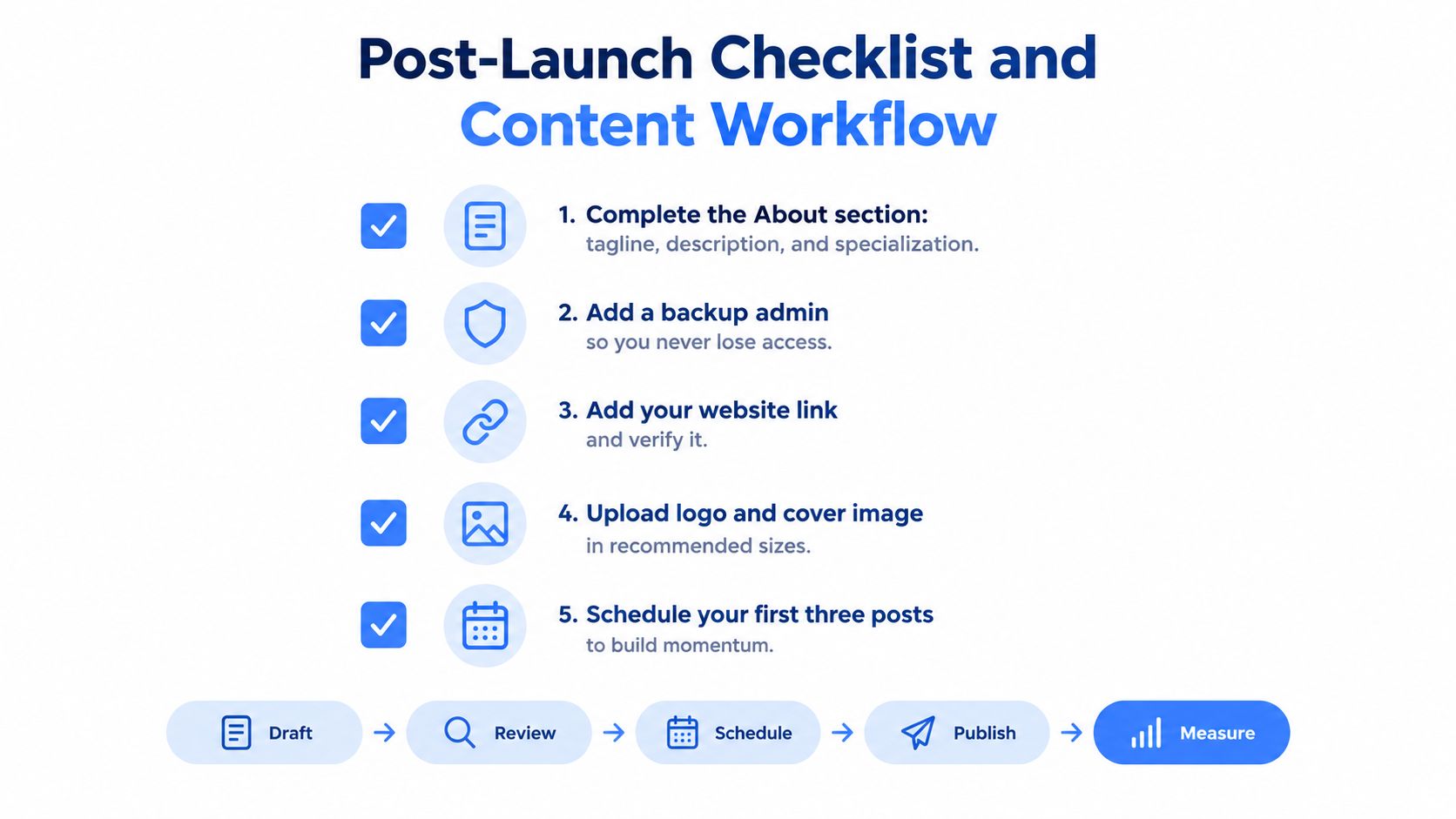
Finish the profile before you send a single employee, customer, or candidate there. Write an About section that says what the company does in plain language. Set a tagline that is specific, not vague. Add specialties only if they help a stranger understand the business faster. Then fill in the basics: website, location, logo, industry, and the public URL. Open the Page in an incognito window and check it like a prospect would.
Do one more check that tutorials skip. Make sure the Page name, logo, and website domain all point to the same brand identity. If they do not, the Page looks improvised, and weak setup choices at this stage make every later fix harder.
Then handle access. Add a backup admin and test the invite immediately. If the second person cannot get in, you do not have backup access, you have a false sense of security. For official setup guidance, use LinkedIn's help documentation.
Use a content rhythm people can sustain
Do not launch with an empty feed. Prepare three posts before the Page goes public. Start with one post that explains the offer clearly. Add one that answers a real customer question. Add one that shows how the team works, what it learned, or what problem it solves better than competitors. Keep the Company Page clean and factual. Save opinion, context, and firsthand stories for employee profiles.
That split matters. The Page is the record. Employees are the distribution.
Run content through a simple workflow the team can repeat without drama.
- Draft: Write one point for one audience.
- Review: Check claims, links, tone, and company details.
- Schedule: Pick a publishing time the team can maintain.
- Publish: Post from the correct Page or personal profile.
- Measure: Review reactions, comments, clicks, and employee participation.
If the team runs dry after the launch week, use these LinkedIn post ideas for companies instead of recycling the same announcement in new words. If hiring is part of your content mix, latam's largest talent marketplace is a relevant reference for posts about regional talent and team operations.
A good Company Page supports the people publishing around it. Keep the Page accurate, give employees useful raw material, and cut formats that get attention without helping the business.
Grow your LinkedIn to the next level.
Use ViralBrain to analyze top creators and create posts that perform.
Try ViralBrain free