
LinkedIn Analytics Report Template for 2026
Use this LinkedIn analytics report template to track engagement, audience growth, and post performance in 2026. Build smarter dashboards and improve your
Grow your LinkedIn to the next level.
Use ViralBrain to analyze top creators and create posts that perform.
Try ViralBrain freeA useful LinkedIn analytics report template tracks awareness, consideration, pipeline, demographics, and post performance. In 2026, average engagement was reported at 5.20%, while native document posts averaged 7.00%, so format level comparison matters more than a grand total. (Socialinsider)
Most LinkedIn reports fail for a simple reason. They show activity without explaining value. A page gained followers, collected impressions, and received reactions. Fine. Which result changed the content plan, audience definition, or budget?
A report for skeptical leadership needs a sharper answer. It should show what changed, why it matters, which audience responded, and what the team will do next. The spreadsheet can still contain every useful field. The front page shouldn't look like a spreadsheet exploded.
The LinkedIn Analytics Report Template Explained
A LinkedIn analytics report template is a repeatable structure for turning Page data into decisions. It sets a reporting period, summarizes performance, breaks results down by post and format, then shows who the content reached.
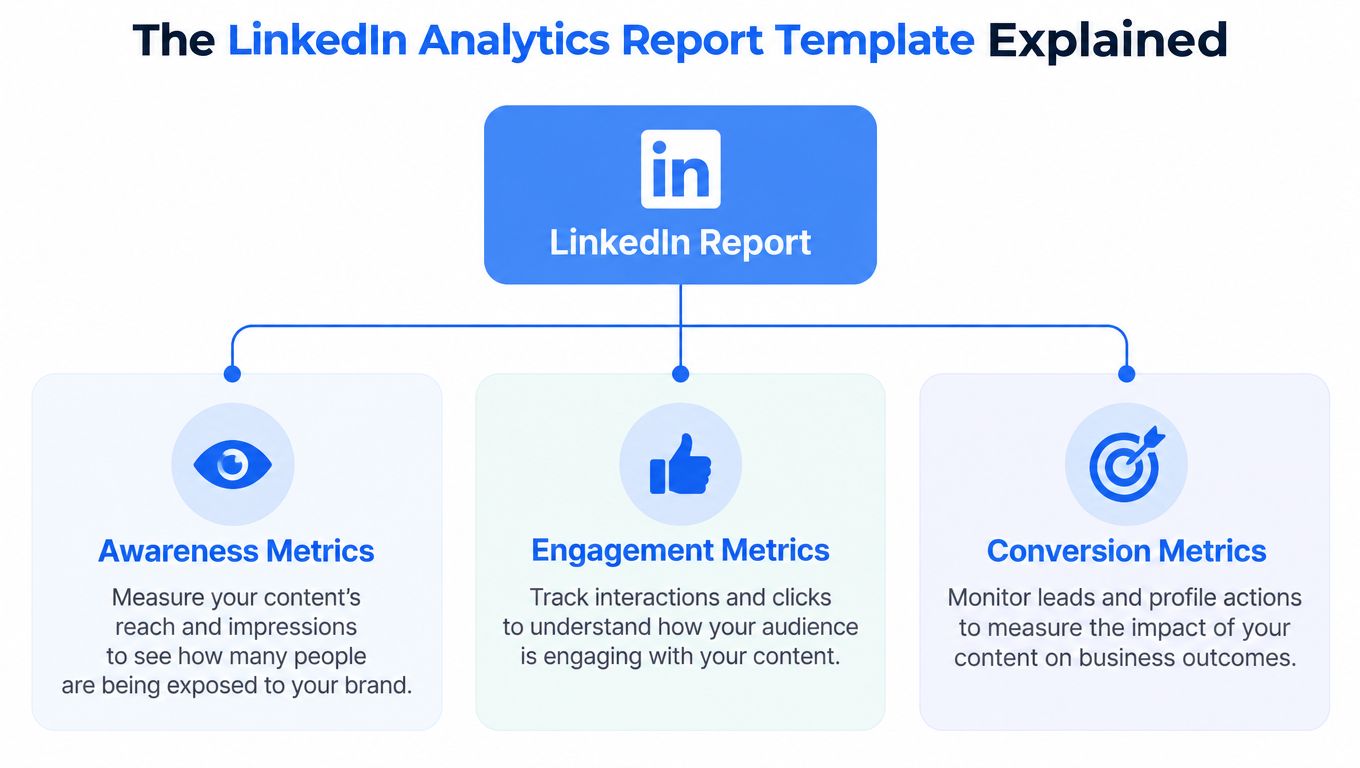
The strongest structure follows three outcome layers:
- Awareness covers impressions, unique reach, and video views.
- Consideration covers clicks, click through rate, average watch time, saves, reactions, comments, and reposts.
- Pipeline covers lead form completions, cost per lead, profile views tied to target accounts, and other business actions.
That structure follows a goal based reporting framework described by Sociality. It keeps the report from treating every metric as equally valuable. They aren't.
Put the core fields in a fixed order
Start with the reporting period. Then show total followers, new followers, follower growth rate, impressions, clicks, likes, comments, shares, and engagement rate. Follow that with audience demographics by country, region, industry, and job function.
A useful template also includes post level performance. Track the post URL, publication date, content format, topic, impressions, clicks, reactions, comments, reposts, engagement rate, and any relevant conversion action.
Whatagraph's LinkedIn report template uses this broad field set, including followers, demographics, engagement, and post performance. The point isn't to worship a long column list. The point is to make each field answer a question.
| Report field | Business question |
|---|---|
| Impressions | Did the message get distribution? |
| Engagement rate | Did people interact after seeing it? |
| Clicks | Did the post prompt action? |
| Audience industry | Did the right market see it? |
| Format | Which asset type deserves more testing? |
Format matters because a document, video, image, or text post can behave very differently. A total engagement number hides that difference. A practical template separates formats from the start.
Building a Goal Based Report Structure
A raw metrics dump gives leadership work, not insight. A goal based report makes the reader follow a path from visibility to interest to business action.
Awareness answers who saw the content
Use impressions, unique reach, and video views at the first layer. These numbers show distribution, not persuasion. A post can reach a broad audience and still attract little interest.
That distinction matters for planning. If awareness is the goal, an impression trend can be useful. If pipeline is the goal, the same trend needs context from clicks, lead forms, audience fit, and CRM outcomes.
Consideration shows active interest
Track click through rate, average watch time, and saves here. Add reactions, comments, and reposts when they help explain the quality of attention. A post with modest reach but strong consideration signals may deserve another format test rather than a larger distribution push.
Pipeline earns the budget conversation
Pipeline reporting should include lead form completions, cost per lead, and profile views tied to target accounts. These metrics connect LinkedIn activity to action, but they still need quality checks. A form completion isn't automatically a sales opportunity.
Pair each KPI with a next action. If impressions rise while clicks stay flat, revise the hook or offer. If saves rise among the right job functions, build a follow up post around the same problem. If lead forms increase but target account activity doesn't, inspect the audience before celebrating.
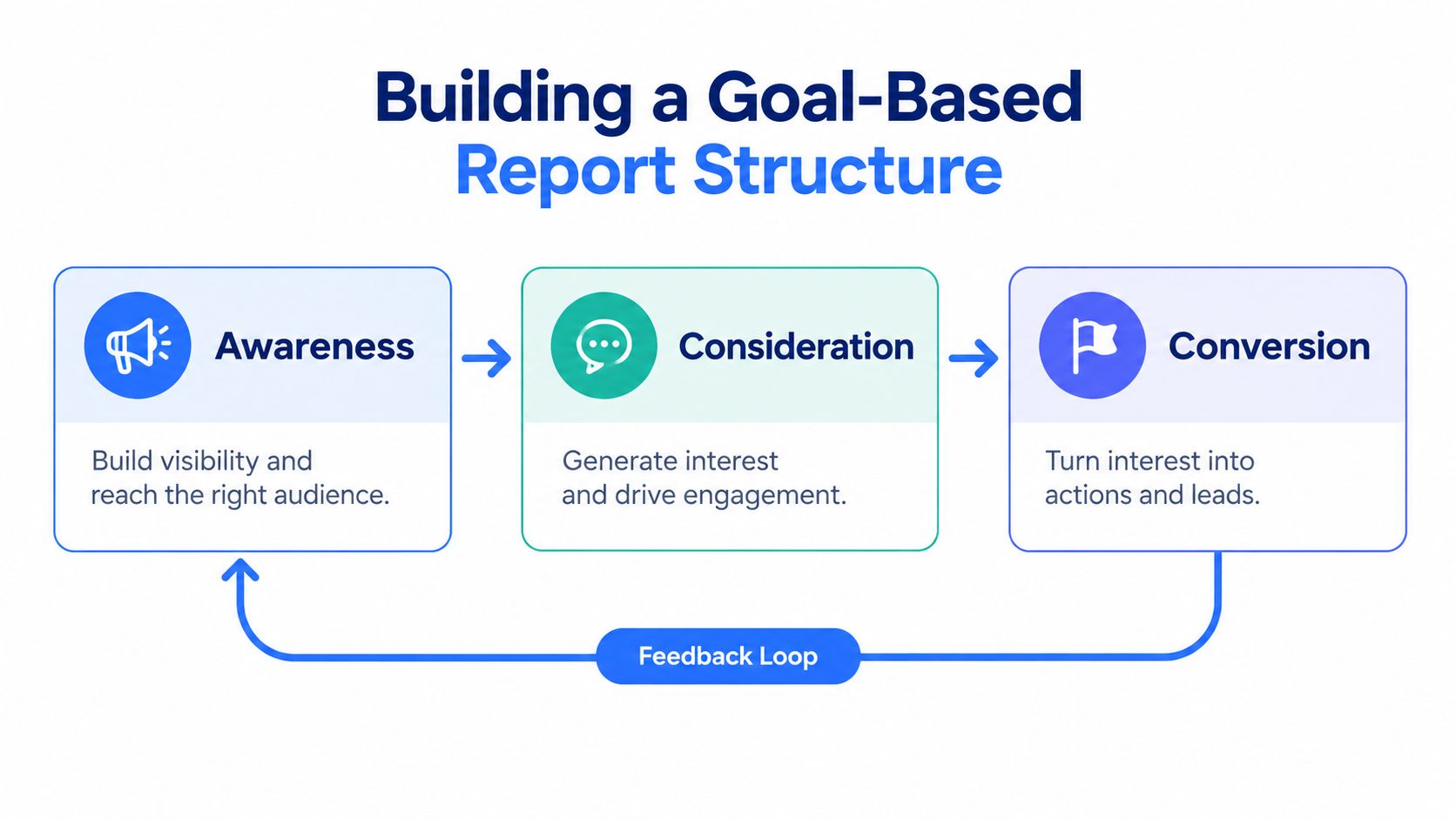
The three layer model prevents a common mistake. Teams often ask an awareness metric to prove pipeline, then call the report disappointing when it can't. Give each number the job it can do.
Practical rule: Put the business question beside every KPI. If nobody knows what decision a metric supports, remove it from the executive view.
The structure also helps B2B teams connect organic content to downstream lead quality. The report becomes a working plan. It shows which audience responded, which content moved them, and which test comes next.
Benchmarking With Percentiles and Per Post Rates
Averages hide uneven performance. One exceptional post can pull the mean upward while most posts remain ordinary. Leadership sees a healthy average. The content team sees a very different feed.
Use percentile comparisons where possible. A B2B benchmark dataset reports monthly snapshots across 9 industry sectors and 7 company size bands, with results expressed through p50, p75, and p90 percentiles. (Oktopost benchmark report)
The percentile tells a clearer story:
- p50 shows the middle of the comparison set.
- p75 marks stronger performance.
- p90 identifies an exceptional result.
Don't compare a small page with a large enterprise page without normalization. Add impressions per post, follower growth rate, engagement rate, and employee advocacy engagement. The same benchmark tool defines engagement rate as engagement divided by impressions, which keeps the rate tied to actual distribution.
Build a comparison row for every KPI
Each KPI should have three comparison points:
- Current period value.
- Prior period delta.
- Benchmark percentile or internal target.
That format separates ordinary fluctuation from a meaningful shift. It also makes meetings shorter. Nobody needs a speech to understand that a post moved from the middle band to the upper band while its format changed.
Per post rates matter more than totals when publishing volume changes. If the team publishes more often, total impressions may rise without stronger content. Track the rate beside the total so activity doesn't masquerade as progress.
For a practical method to compare competitors without treating unlike pages as twins, use this step by step competitive benchmarking guide. The useful habit is consistent normalization, not chasing a flattering number.
Understanding Engagement Rate and Click Through Rate
Engagement rate and click through rate measure different behavior. Mixing them creates a report that sounds precise while answering nothing.
Engagement rate measures interactions such as comments, reactions, and reposts relative to impressions. Click through rate measures clicks after a post is shown. LinkedIn's nonprofit analytics guidance treats both as useful because one indicates audience connection while the other indicates action.
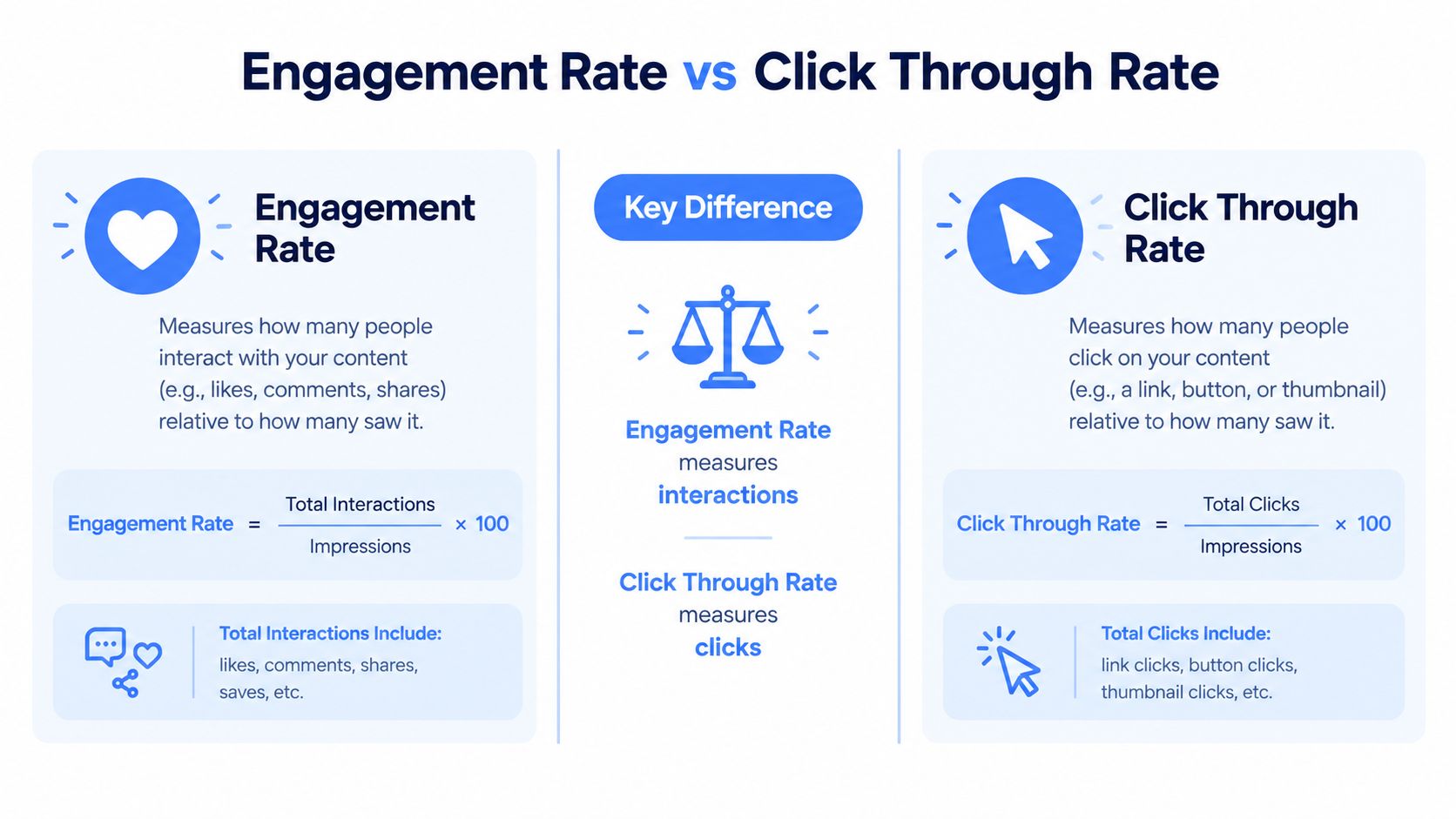
Use these formulas in the sheet:
| Metric | Calculation | What it tells you |
|---|---|---|
| Engagement rate | Interactions divided by impressions | Whether people responded |
| Click through rate | Clicks divided by impressions | Whether people took the click action |
LinkedIn defines impressions as the number of times a post was shown. It defines clicks as clicks on the content, company name, or logo by a signed in member. Clicks exclude reposts, reactions, and comments. Multiple clicks on the same document by one member count as one click. (LinkedIn Help)
That last detail matters when someone compares click totals with interaction totals. The measures don't share the same counting rules. Put the definition in a notes tab so nobody changes the formula during a late meeting.
A post can have strong engagement with weak click through rate. That usually means the idea invites discussion but doesn't create a clear next step. The reverse can happen too. A post may earn few visible interactions yet drive useful clicks. The report should show both outcomes rather than declaring a winner from likes alone.
For profile specific measurement, the LinkedIn analytics profile guide can sit beside the Page report as a separate reference. Keep profile and Page data separate unless the reporting goal combines them deliberately.
Adjusting for 2026 Distribution Changes
LinkedIn distribution is changing, so a falling impression line isn't automatically a failure. Recent benchmark data reports average engagement at 5.2%, native document posts at 7.0%, and a 36% year over year decline in video views. (Socialpilot)
Those figures create a basic reporting requirement. Compare formats, not just totals. A document post may earn better engagement while a video receives fewer views. A template that merges both formats turns a useful diagnosis into soup.

Use a longer view for slow posts
Some posts keep collecting attention after the initial publishing window. Recent guidance recommends 28 to 42 day windows for slow burn posts and favors deltas, winners, and losers over screenshots. (Socialpilot)
Build the spreadsheet with a fixed date range, then add a format column. Use conditional formatting for positive and negative deltas. Keep a separate notes field for distribution changes, reposts, campaign support, or unusual events.
The safe workflow is simple. Export the period, preserve the raw file, copy cleaned values into the working sheet, then record the comparison period beside them. Don't overwrite last month's raw data because a chart looks untidy.
The video below can help teams think through the reporting workflow, but it shouldn't replace checking LinkedIn definitions and exported fields.
Your report should show format winners and losers with enough time for slow posts to mature. That's more useful than arguing over a screenshot taken too early.
Creating the Spreadsheet Template in Excel or Google Sheets
A spreadsheet works well when the team needs traceable data. A slide deck works well when leadership needs a short decision document. Use both when necessary, but don't force one file to do both jobs.
Create three sheets:
- Summary holds the reporting period, KPI values, prior period deltas, audience notes, and next actions.
- Post details holds one row per post with date, URL, content type, topic, impressions, clicks, reactions, comments, reposts, engagement rate, and conversion fields.
- Audience holds followers, new followers, geography, industry, job function, and other approved demographic fields.
The Whatagraph LinkedIn report template is a useful reference for the core field set. Keep headers stable. A column called “Post format” shouldn't become “Creative type” next month unless you enjoy repairing formulas.
Make the sheet boring on purpose
Lock the reporting period in a visible cell. Use one date format throughout. Add data validation for content type so “Document,” “document,” and “PDF” don't become three separate categories.
Use conditional formatting for deltas, but keep the rules restrained. Green should indicate a favorable movement for that KPI, rather than just a larger number. A lower cost per lead can be favorable. A lower engagement rate usually needs attention. Context beats decoration.
A slide deck should contain the headline finding, two or three supporting charts, audience fit, and next actions. The spreadsheet should remain the audit trail. Leadership doesn't need every row. Analysts do.
| Audience | Better format |
|---|---|
| Executives | Short slide summary with decisions |
| Content team | Detailed spreadsheet with post rows |
| Demand generation | KPI view tied to clicks and leads |
| Sales leadership | Audience and target account context |
Don't build a chart for every field. If a chart won't change a decision, leave it in the raw tab.
Populating the Template With Safe Reliable Data
Clean input beats fancy output. Start with the LinkedIn Page, open the relevant analytics area, set the reporting period, and export the available data. Preserve every raw export in a dated folder before editing anything.
Then work through the rows:
- Match each post to its URL, publication date, and post ID.
- Check that each post appears once.
- Map the content format using the same naming rules each month.
- Copy impressions, clicks, reactions, comments, reposts, and rates into the post sheet.
- Add follower and audience data to the correct reporting period.
- Record missing fields instead of filling them with zero.
A blank value and a zero don't mean the same thing. Zero means the measured value was zero. Blank may mean the field wasn't available or wasn't exported. That distinction can save a report from a very embarrassing footnote.
Verify definitions against LinkedIn's explanation of impressions and clicks. LinkedIn's click rules exclude reposts, reactions, and comments, while repeated clicks on the same document by one signed in member count as one click.
Add checks before sharing
Flag sudden spikes, duplicate post IDs, missing dates, impossible rates, and format names that don't match the approved list. Compare totals with the native Page view before publishing the summary.
For teams that need structured collection beyond manual exports, a LinkedIn scraping API may be relevant, subject to permissions, platform rules, and data governance. Automation doesn't make bad definitions correct. It only makes bad data arrive faster.
Keep a version number in the file name. Save the raw export, cleaned workbook, and final presentation separately. For practical instructions on checking post data, see how to see LinkedIn post analytics, then confirm the fields against the current Page interface.
Reading the Report and Choosing Next Actions
Start with the goal, not the chart. A good executive summary answers three things: what changed, why it matters, and what the team will do next. ContentStudio's LinkedIn reporting guidance uses the same principle, placing goals, summary, content performance, audience movement, and website or lead activity in a useful order.
The first page should make the main finding obvious. Say that document posts outperformed the page baseline, that target industry share moved in the right direction, or that clicks lagged behind visibility. Don't write “performance was mixed.” That phrase is the corporate version of shrugging.
Give each audience a different view
Executives need outcomes, risks, and decisions. Content creators need post level clues. Demand generation teams need clicks, forms, target account activity, and lead quality. One report can serve all three if the summary stays short and the detailed tabs remain available.
Use a winners and losers table. Include format, topic, audience signal, result, and next action. A winner isn't just the post with the most impressions. A loser isn't just the post with fewer views. Judge each against its assigned goal and its format peers.
Meeting test: If the report doesn't support a change in content, audience, measurement, or budget, it belongs in the archive.
Read audience movement beside content performance. If a post performs well but attracts the wrong industry, don't copy it blindly. If a smaller post reaches the right job function and drives clicks, it may deserve more attention than a broad visibility winner.
Finish with explicit actions. Keep publishing the format that beats its relevant baseline. Rewrite weak calls to action. Review audience targeting when lead quality falls. Set the next reporting period before the meeting ends.
ViralBrain offers LinkedIn content intelligence, including post analysis, creator pattern research, draft scoring, niche benchmarks, and analytics that can support a report like this. Visit ViralBrain to compare content patterns, improve drafts, and connect publishing decisions to clearer LinkedIn performance data.
Grow your LinkedIn to the next level.
Use ViralBrain to analyze top creators and create posts that perform.
Try ViralBrain free