
How Do I Repost on LinkedIn on Desktop and Phone
How do I repost on LinkedIn on desktop or phone, with your thoughts, the right audience, and a fix when the icon is missing.
Grow your LinkedIn to the next level.
Use ViralBrain to analyze top creators and create posts that perform.
Try ViralBrain freeChoose Repost to share a public LinkedIn post unchanged, or Repost with your thoughts to add your own text. The second is the default when you have a real point.
You've found a customer story, hiring announcement, or useful argument in your feed. Your thumb is over the repost icon. You want the right people to see it, but you don't want your profile to become a noticeboard with a headshot.
The useful choice happens before you click. Decide whether you're passing along information or adding something readers need.
Pick the Right Repost Before You Share
Repost and Repost with your thoughts serve different jobs. Use the plain option when the original already says what your audience needs. Add thoughts when your experience, qualification, or question makes the post more useful.
LinkedIn's repost help guide describes these options for existing public posts from members and LinkedIn Pages. A post limited to connections doesn't meet that public visibility requirement.
Which LinkedIn repost to use
| Choice | What you publish | Use it when | What people see |
|---|---|---|---|
| Plain Repost | Original post, no extra text | The original already fits your network | Original post with your name as the sharer |
| Repost with your thoughts | Your note plus the original | You have one reason, lesson, or question | Your text on top, original underneath |
| Repost a comment | Your note plus one comment, optional image or video | The useful line is in the thread, not the post | Your note with the comment attached |
| Page repost | Same post as you or as the Page | The message should be official or personal | Chosen name, audience, and comment setting |
Your commentary sits above the attached content. If you're sharing an earlier repost with commentary, that earlier commentary appears beneath yours. Readers can follow the connected posts back to the original.
That attachment preserves attribution. Copying someone's words into a fresh post loses the built in path to their work. Give readers the source, not a scavenger hunt.
Add a point of view only when you have one. An empty introduction is still empty, even with enthusiastic punctuation.
Say a partner publishes an open role. A plain repost may be enough because the application details already do the job. But if you know which kind of candidate would fit, your note can help someone decide whether to apply.
For founders, marketers, and salespeople, commentary is useful when it explains relevance. Distribution alone can still be worthwhile. That's the practical idea behind social amplification, helping useful content reach another relevant audience.
Don't confuse adding text with adding value. Your note should give readers a reason to care that the original hasn't already supplied.
Repost a Post on Desktop and on Your Phone
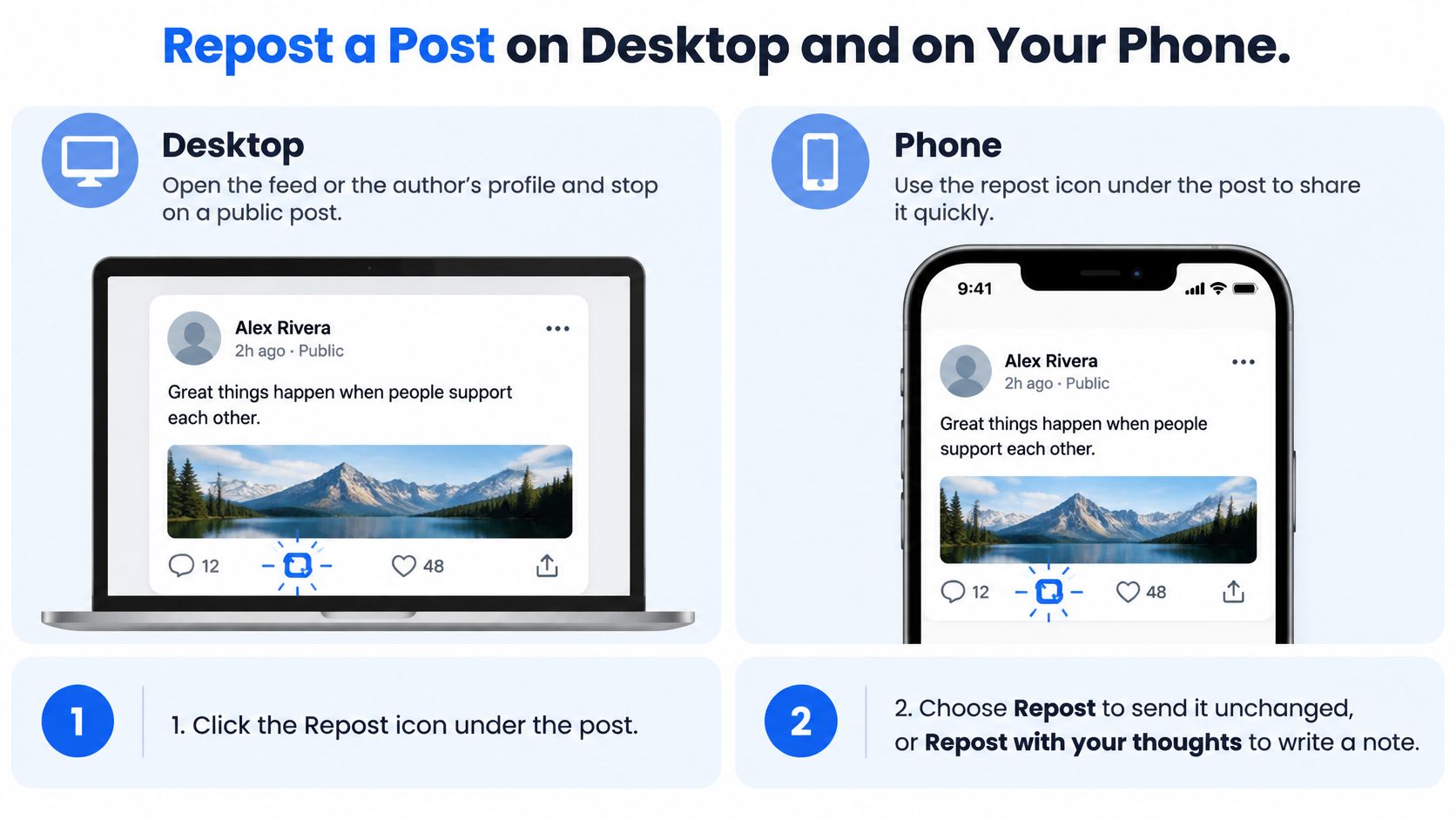
The desktop and phone paths use the same basic choices. Find the post, open the repost menu, then either share it unchanged or write before publishing.
If you're searching for “How do I repost on LinkedIn” while staring at the share controls, look beneath the post for the repost icon. Don't choose Send unless you mean to share privately in a message.
On desktop
- Find the post. Open your feed or the author's profile. Stop on the public post you want to share.
- Click Repost. Use the icon beneath the post to open the available choices.
- Choose your format. Select Repost for an unchanged share. Select Repost with your thoughts to open the writing box.
- Write the useful part. Explain why the post matters to your audience, then add a specific takeaway.
- Check and publish. Review the attached post, your text, and the available audience setting before posting.
When you add commentary, LinkedIn's guide to reposting with thoughts allows mentions of people, companies, or schools using @. Type the name and select the correct account.
Use a mention because the account belongs in the point. Don't tag people as a substitute for having something to say.
The desktop and phone paths are shown below.
On your phone
- Open the LinkedIn app. Find the public post in your feed or on a profile.
- Tap Repost. Look at the bottom of the post.
- Choose Repost or Repost with your thoughts. The choice works like desktop.
- Finish your note. Add relevant commentary and any appropriate mention, then check who can see it.
- Tap Post. Open your profile activity afterward to confirm the result.
Use the app if the mobile browser isn't showing the control properly. There's no prize for struggling with the browser.
Make the note specific
Say you're sharing a partner's customer story with sales colleagues. Explain which buyer concern it helps answer, such as uncertainty about implementation. Don't summarize the whole story.
For a hiring post, name the kind of person who should read it. For a video, point to the discussion or demonstration worth watching. Avoid retelling the video before anyone has pressed play.
After publishing, check the actual result. Your commentary should appear above the attachment. A plain repost should show the original without an extra paragraph from you.
If you change your mind, find the repost in your activity and use its menu to remove it. Removing your repost doesn't remove the author's original.
Repost From a LinkedIn Page
A Page repost needs an identity check before anything goes live. Company news published under your own name can look like a personal endorsement. A personal opinion published as the company creates a different problem.
Use the Page controls deliberately.
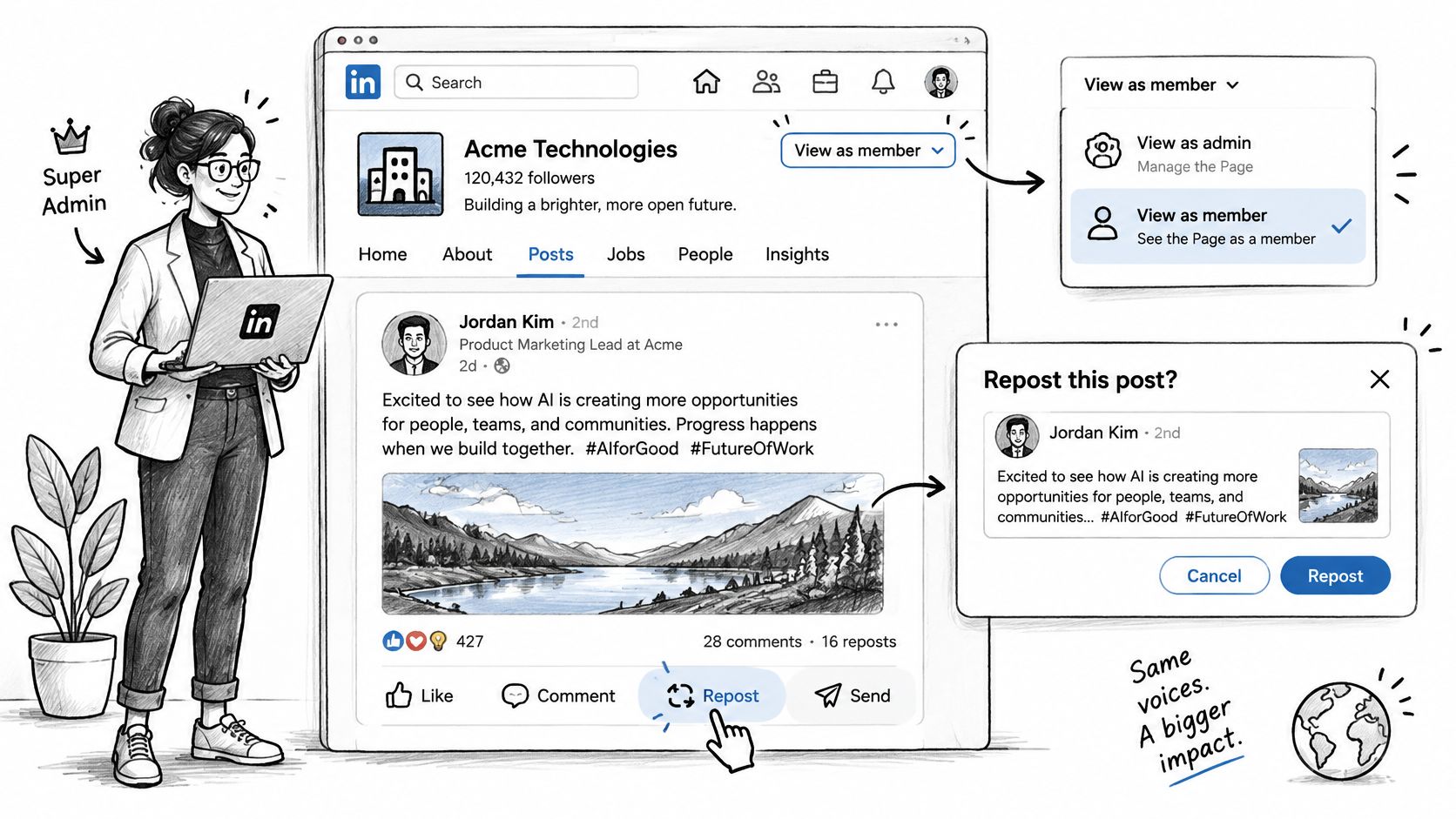
Start from the admin view
A Page super admin can open the Page's admin view, choose View as member, find the public post, and select the repost icon. LinkedIn's Page admin repost guide describes this route and the choice between sharing unchanged or adding thoughts.
Don't assume the account you used to sign in determines the publishing identity. Stop at that choice and read the name shown.
Check the publishing controls
LinkedIn's Page repost settings guide describes controls for publishing as the administrator or Page, selecting visibility, turning comments on or off, and labeling a brand partnership.
| Control | What to check before publishing |
|---|---|
| Identity | Does the displayed name match who should speak? |
| Audience | Can the intended readers see the repost? |
| Comments | Should readers be able to reply? |
| Brand partnership | Does the post need the partnership label? |
For a product launch, publishing as the Page gives readers an official company message. Leave comments available when buyers need somewhere to ask questions.
For a founder's personal observation about a customer win, the individual identity may fit better. Keep the wording personal rather than making promises on the company's behalf.
Read the name beside the post button. It's cheaper than explaining the wrong signature afterward.
This video provides another view of the repost workflow.
After publication, inspect the live repost rather than relying on memory. Check that the company message appears under the intended identity and that readers can respond as planned.
You can open the original post's repost count to see who shared it. That helps a team inspect distribution beyond the original audience. It doesn't tell you whether those shares brought useful conversations, so don't stop at the count.
Repost a Comment From the Thread
Sometimes the useful insight sits below an ordinary post. Someone explains a missing assumption, offers a practical correction, or answers the question the author left open.
Share that comment when it can stand up outside the thread. A reply that only makes sense after reading a long argument needs more context than a repost can comfortably carry.
Share the comment itself
LinkedIn's comment repost guide describes reposting a comment with added thoughts, mentions, optional image or video, and a selected audience.
- Find the comment. Open the discussion and locate the exact reply worth sharing.
- Select its Repost icon. Use the control under the comment, rather than the one under the main post.
- Explain the relevance. Tell readers what the comment helps them understand or do.
- Add media only if useful. Use the available image or video control when it supports the explanation.
- Choose visibility and publish. Check the finished repost to confirm the comment remains attached.
Say a discussion about sales handoffs contains a clear explanation of what account teams need before a call. Your note can identify the handoff problem and explain how to apply the suggestion.
A generic congratulatory reply rarely deserves the same treatment. Away from the original conversation, it's mostly confetti.
Share a comment for the insight it contains, not because its author has a large audience.
If you're deciding whether to reply in the thread instead, this guide to commenting for better reach helps separate contributing to a discussion from republishing it.
Check how far the comment should travel
Depending on visibility, people on or off LinkedIn may see a reposted comment. Treat the audience choice as a publishing decision, not a box to dismiss.
Read for client details, salary information, employer context, and internal processes. A comment can be public without being sensible to amplify.
If the insight needs private background to make sense, leave it in the thread. Pick a public industry lesson instead. The commenter's access to a publish button doesn't remove your responsibility for what you pass along.
Fix a Failed Repost and Move On
Start with the visible problem. Don't delete and recreate a repost just because the feed hasn't shown it to you.
Repost problems and the fix
| What you see | Usual cause | Fix |
|---|---|---|
| No Repost icon | Post is not public or you cannot view it | Ask for a public post, or write your own and credit the person |
| Repost missing from your feed | Audience limited to connections, or a short delay | Recheck visibility, then refresh after a minute |
| Nobody can comment | Comments were turned off on a Page repost | Turn comments on before you publish again |
| Wrong name on the post | Identity left on you or on the Page by mistake | Delete it and repost after checking identity |
| Post looks like spam | Random mentions or no point of view | Keep one real mention and one specific takeaway |
Make your next post your own
Use a follow up post for the idea you want to develop further. Don't make your profile entirely borrowed material.
Our Repurpose Content turns YouTube videos, blogs, and articles into LinkedIn posts. Our 30-Day Auto Calendar plans and auto-publishes a month of LinkedIn posts, with LinkedIn auto-posting available as a Premium feature through LinkedIn's official API rather than a browser extension, on a 30-day calendar.
Those tools support your own publishing. They don't replace checking a native repost before it goes live.
Write a Useful Note and Measure It
A 2025 peer reviewed LinkedIn engagement study reported that more than 50% of LinkedIn posts received no reposts. Don't assume sharing is an automatic response to useful content.
Treat your repost as a small publishing experiment. Record what happened to your share, not what happened to the original author's post.
Keep a simple score sheet
Use a consistent observation window of 24 to 72 hours and collect at least 10 to 20 posts per format before trusting a pattern. Compare plain reposts with commentary reposts aimed at similar audiences.
Record the date, format, topic, impressions, reactions, comments, reposts, clicks, profile views, and qualified conversations. Note changes in author size, posting time, and activity soon after publication because those can obscure the effect of the format.
Calculate engagement rate as (reactions + comments + reposts + clicks) / impressions. Keep the calculation consistent across your comparisons, and don't substitute the original post's totals for your own results.
Use this visual as a reminder of what to track.
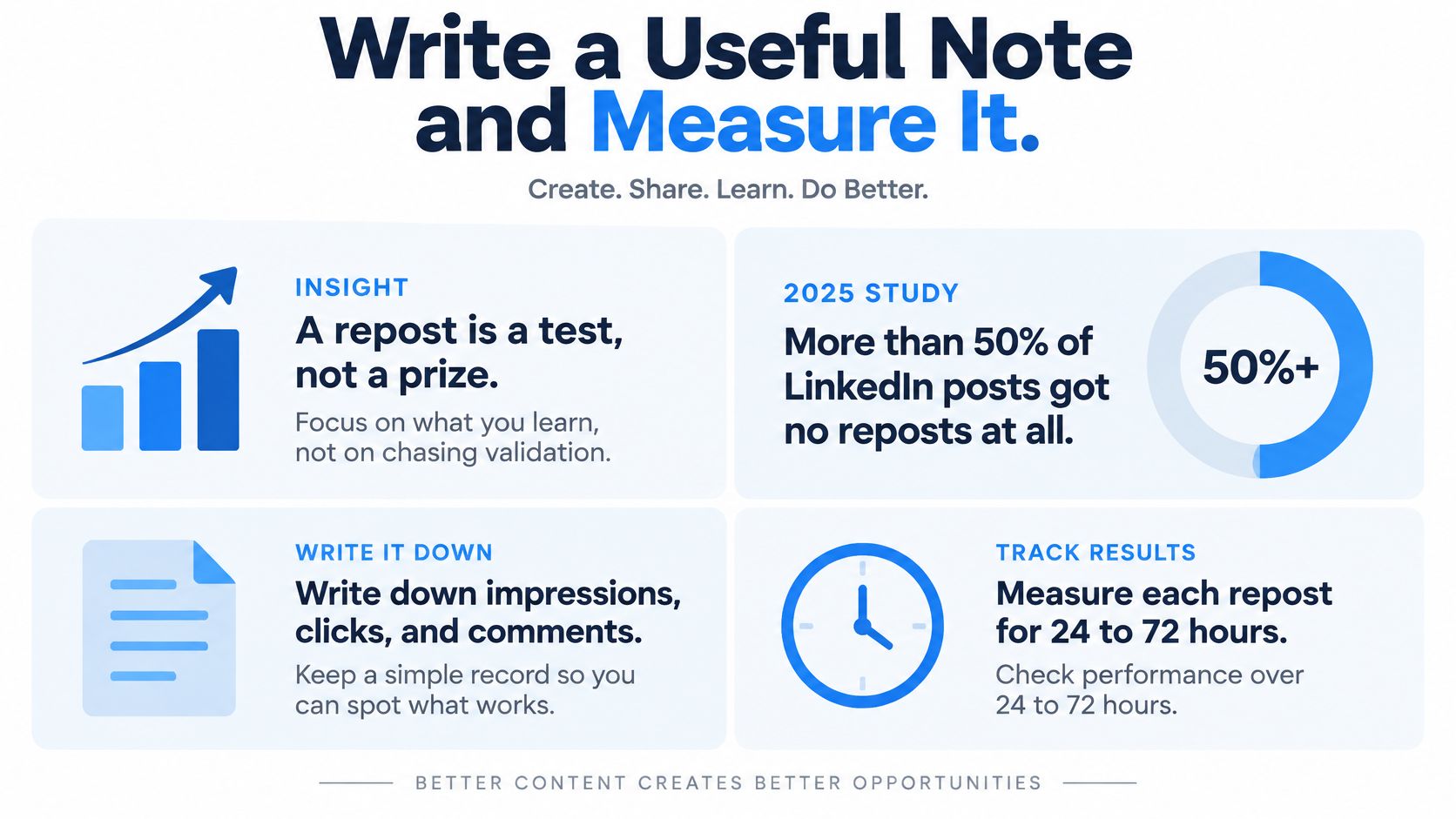
Not every downstream outcome will be directly attributable to a repost. Record profile activity and qualified conversations as signals, and avoid pretending every visit came from that share.
For help reading the available metrics, use this guide to LinkedIn post analytics. A popular original attachment can otherwise make a weak repost look productive.
Test a lesson against a careful disagreement
An operator lesson tells readers what to do with the idea. For example, a note on onboarding could recommend assigning a named owner before the kickoff meeting.
A careful disagreement names the boundary of a claim. On the same topic, your note might explain that a checklist helps routine handoffs but won't settle unclear ownership.
If your note could sit above almost any post, it needs another draft.
Keep the tone useful rather than combative. You're qualifying an idea, not auditioning for an argument.
For financial advisers, commentary needs a compliance check before publication. Advisor Momentum's guide to compliant networking with Advisor Momentum offers relevant context for that decision.
Review your sheet regularly. Keep the approach that brings relevant profile visits and qualified conversations. Likes can show a response, but they don't establish business value or a universal reach multiplier.
ViralBrain helps you turn source material into LinkedIn drafts and refine them in your own voice. Visit ViralBrain to prepare your next original post alongside the useful content you choose to repost.
Grow your LinkedIn to the next level.
Use ViralBrain to analyze top creators and create posts that perform.
Try ViralBrain free